What Orbital is
Orbital is a project agent. It runs on your computer and looks after one thing: your project.
It keeps your project's context
Orbital records the decisions, lessons and details of everything done in a project. Whichever agent picks up the work next starts from where things actually stand, so you never re-explain the background.
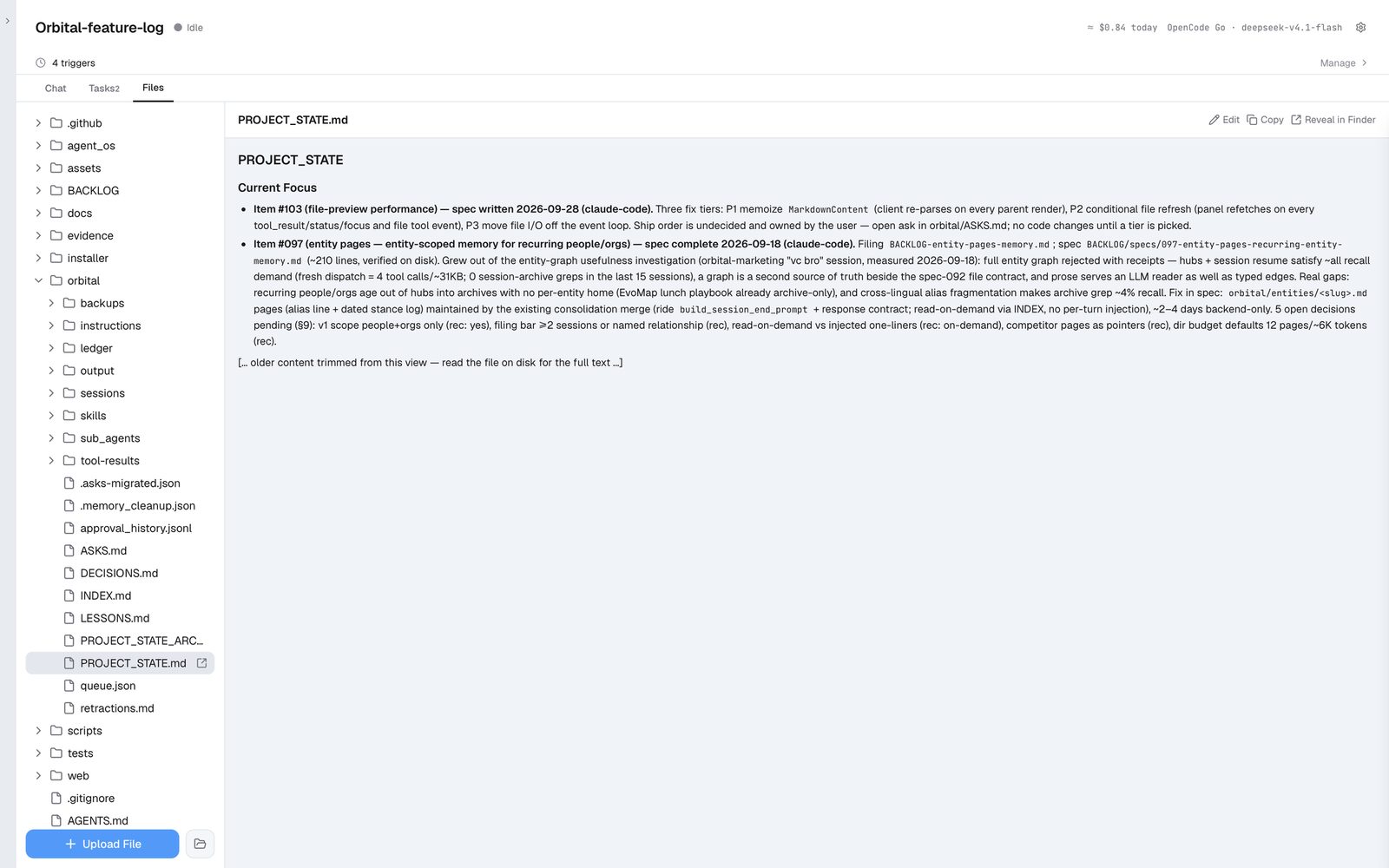
The project's memory is plain files in your own project folder.
It dispatches your coding agents
Orbital hands work to Claude Code, Codex and other sub-agents. It writes their prompts, briefs them on the project, and follows through while they work, so you don't have to watch.
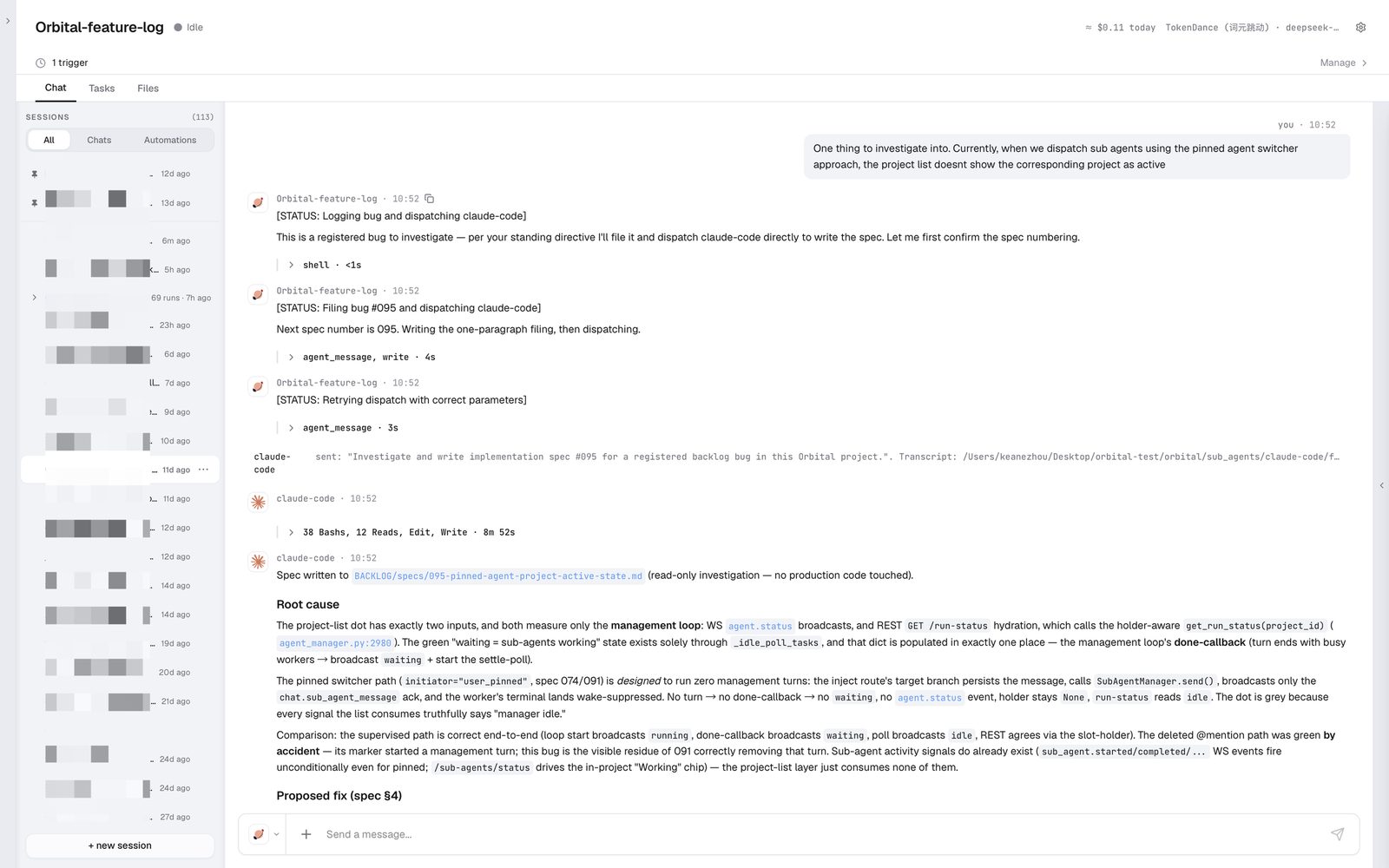
Orbital files a bug, hands the investigation to Claude Code, and gets back a root-cause write-up.
It can do the work itself
With an API key set up, Orbital works on its own too: browser automation, documents, slides.
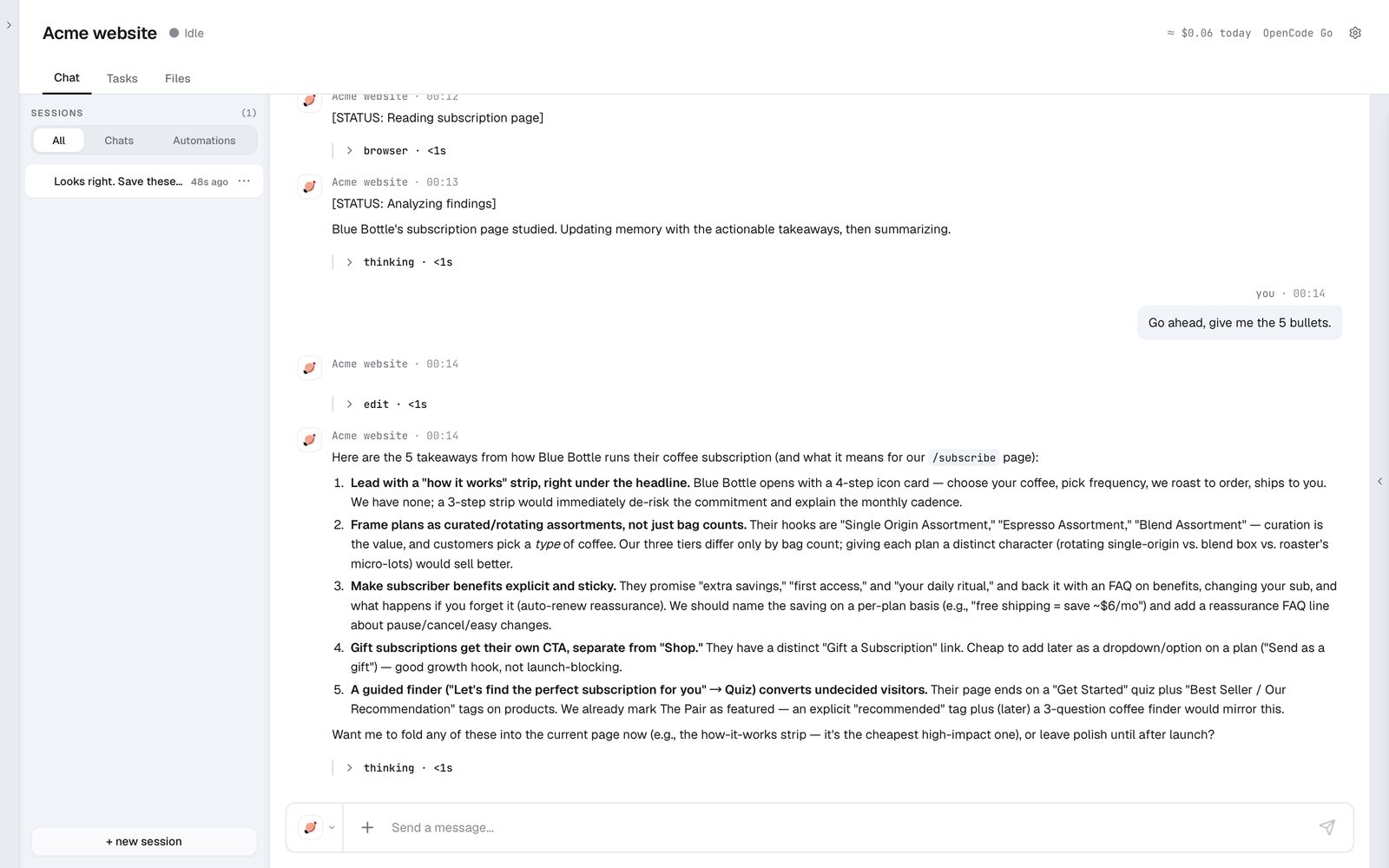
Orbital reads a competitor's subscription page in the browser and turns it into five takeaways for your own.
Getting started
1. Add an API key
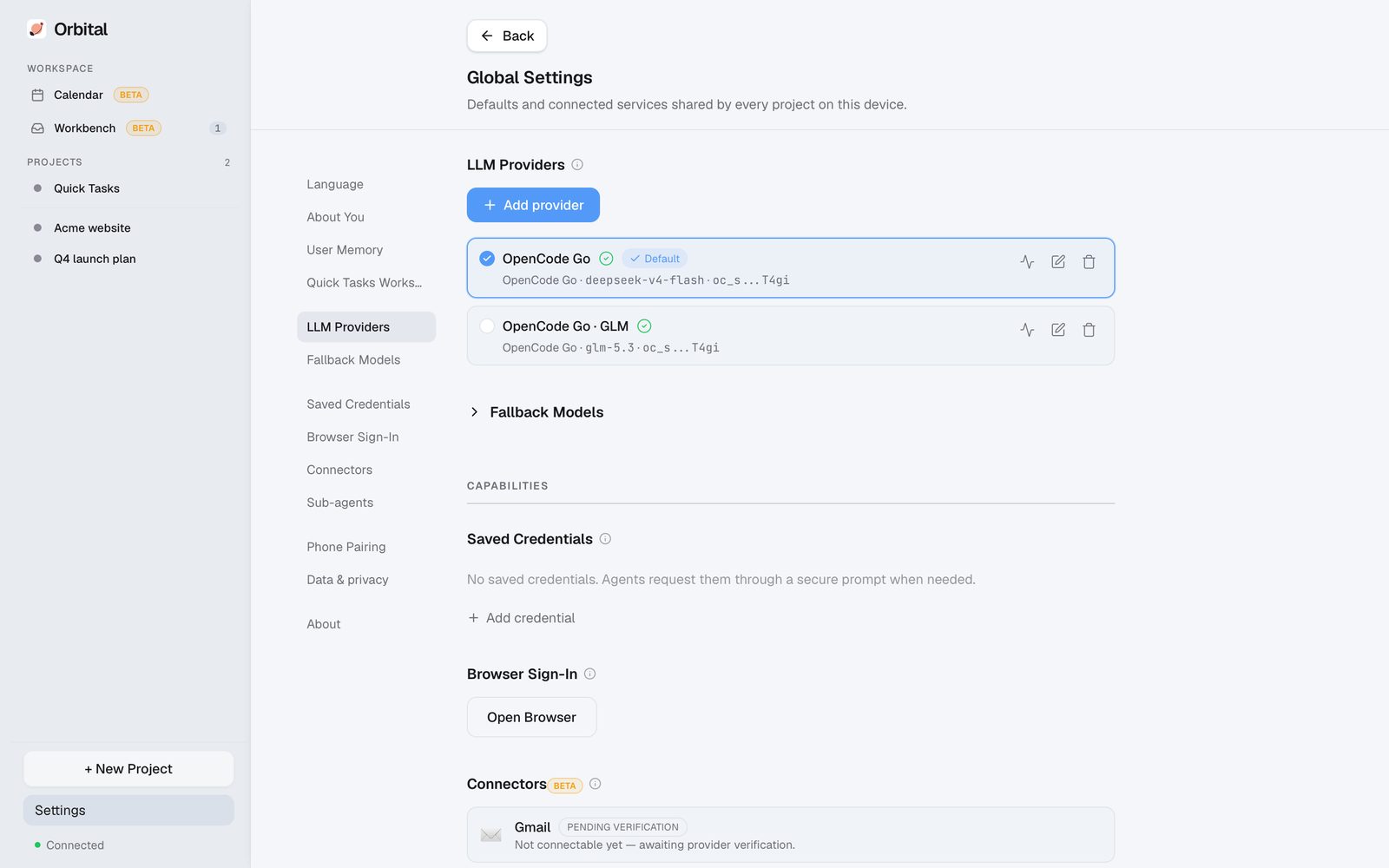
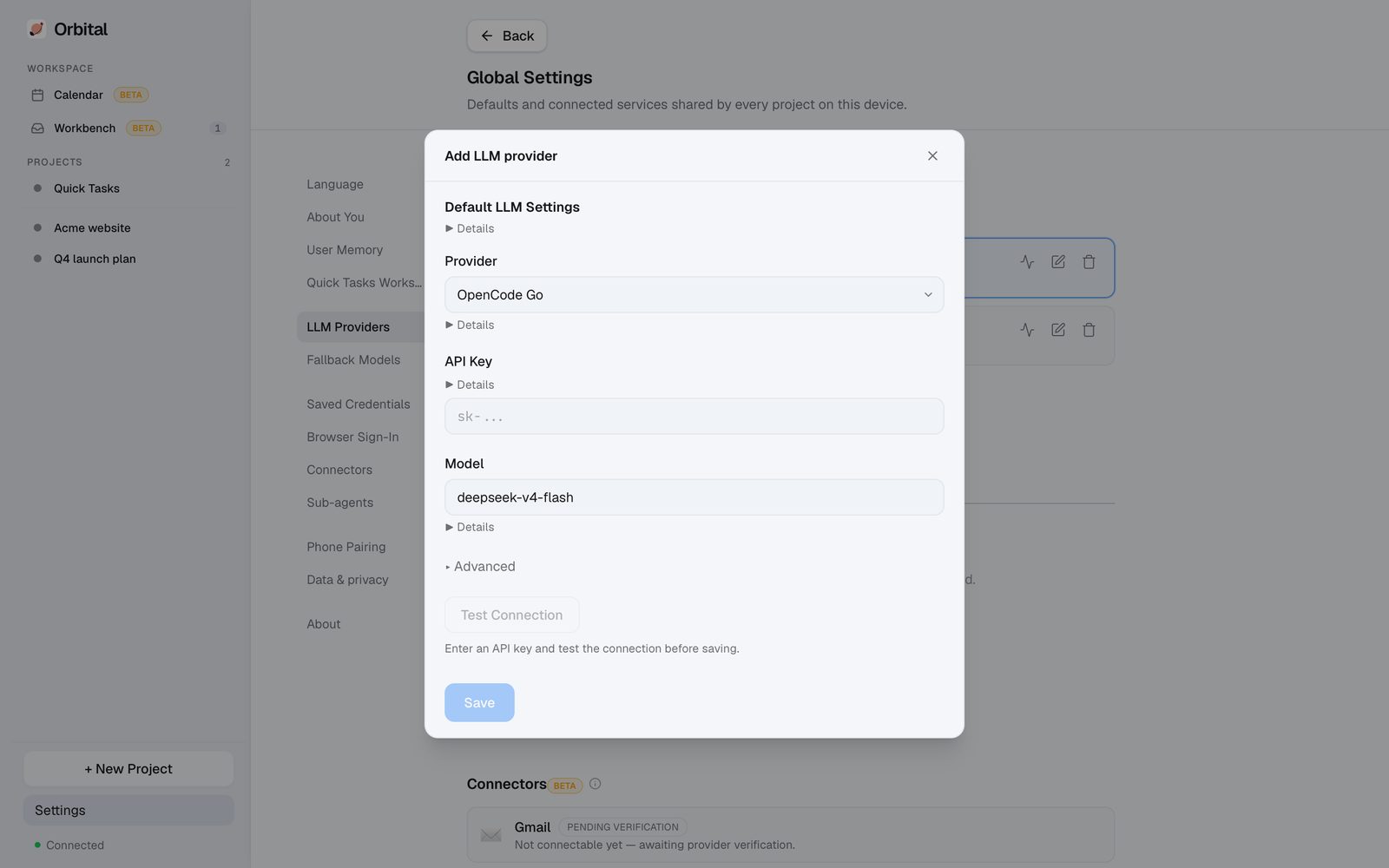
Pick a model provider and paste your key. Recommended models: deepseek-v4-flash or glm-5.3-flash.
Providers we recommend:
- TokenDance: a model gateway with deep discounts. Sign in with one click and the key is filled in for you. https://tokendance.space/
- OpenCode Go: a model gateway on a monthly plan. https://opencode.ai/go
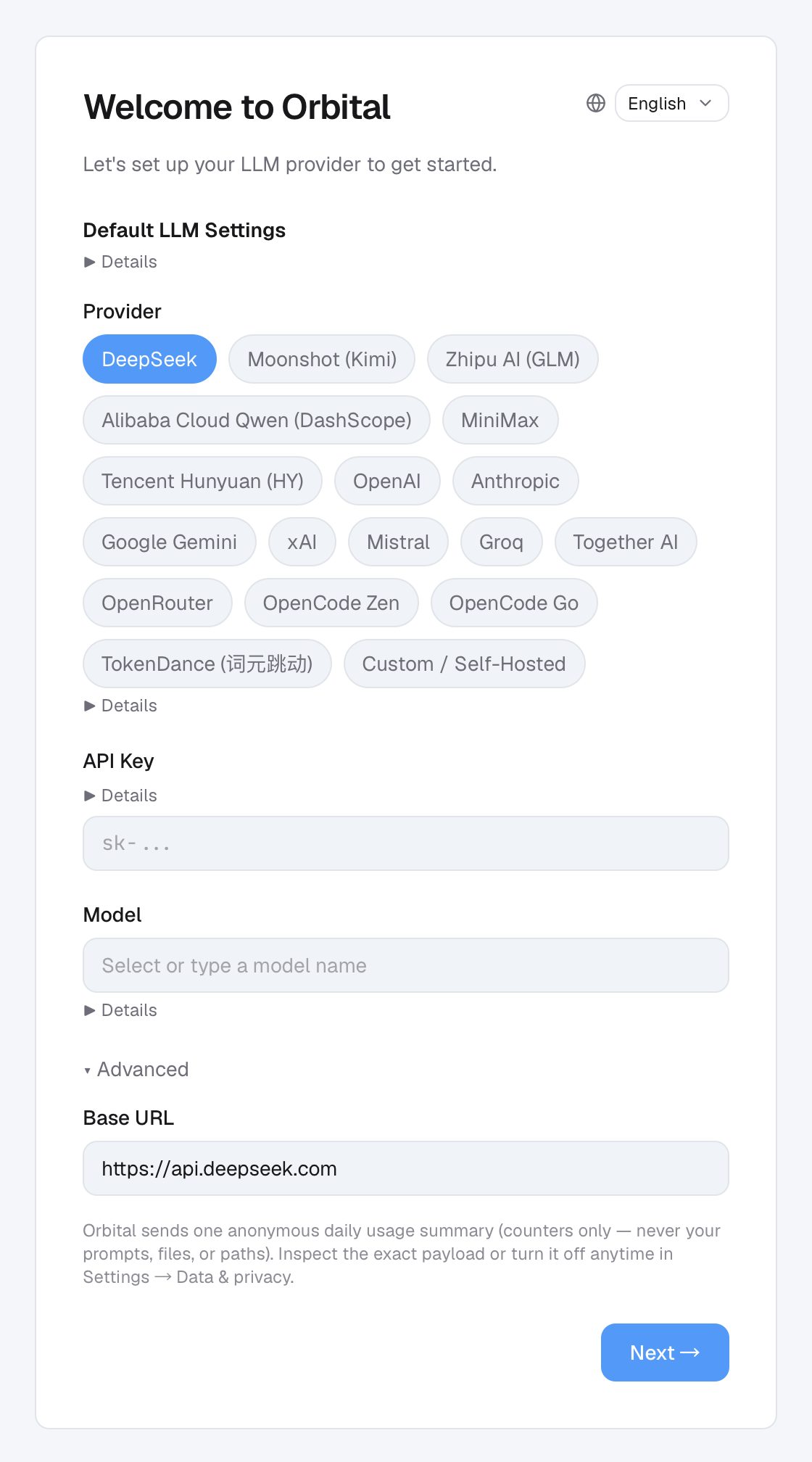
You can add more models or switch between them later in Settings → LLM Providers.
2. Sign in to websites and import projects
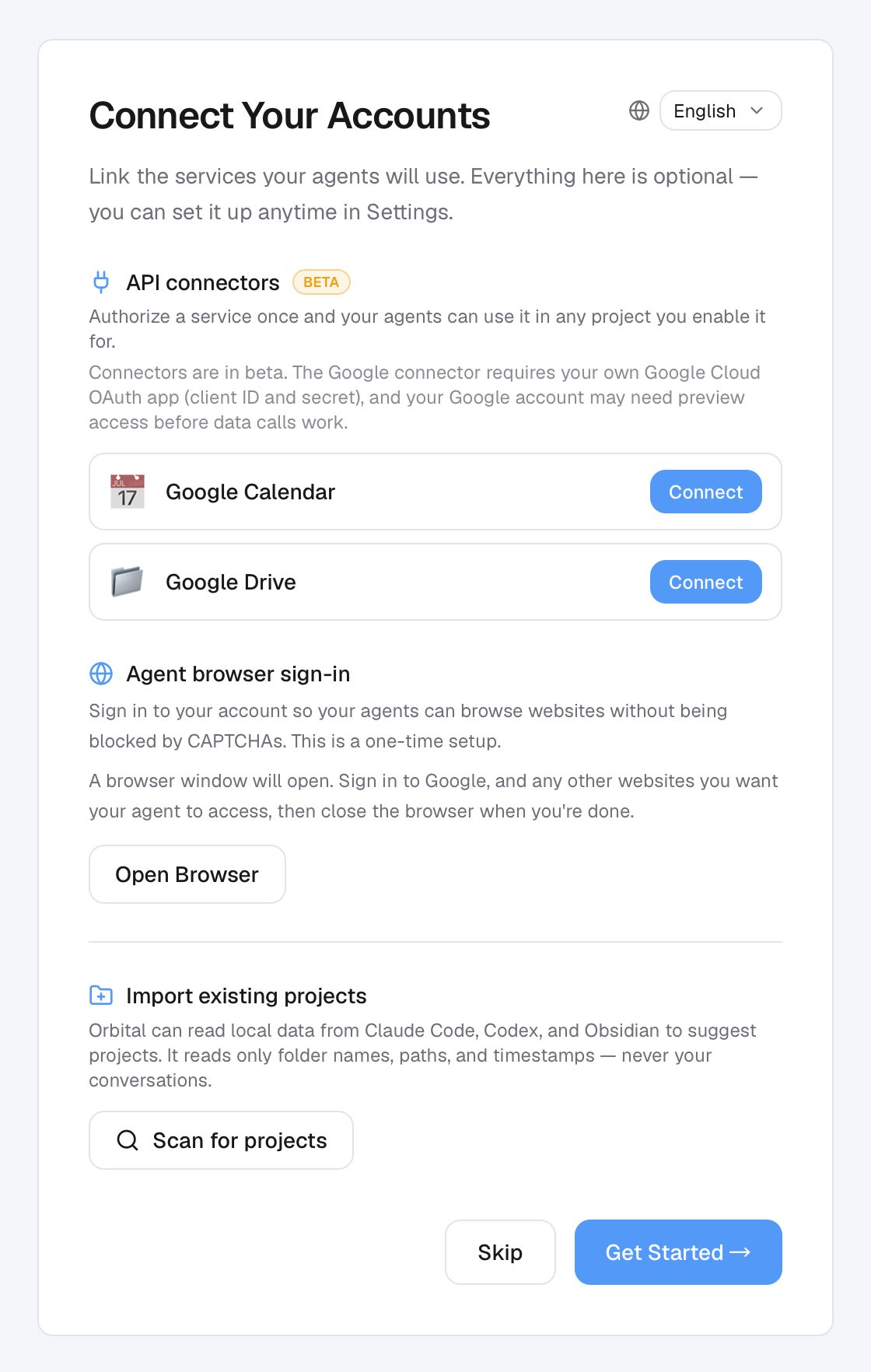
Sign in to websites
Click Open Browser. Sign in to the sites you want Orbital to use for you, such as X or Gmail. Orbital then acts with your own accounts, for example to post or send messages. Close the window when you're done.
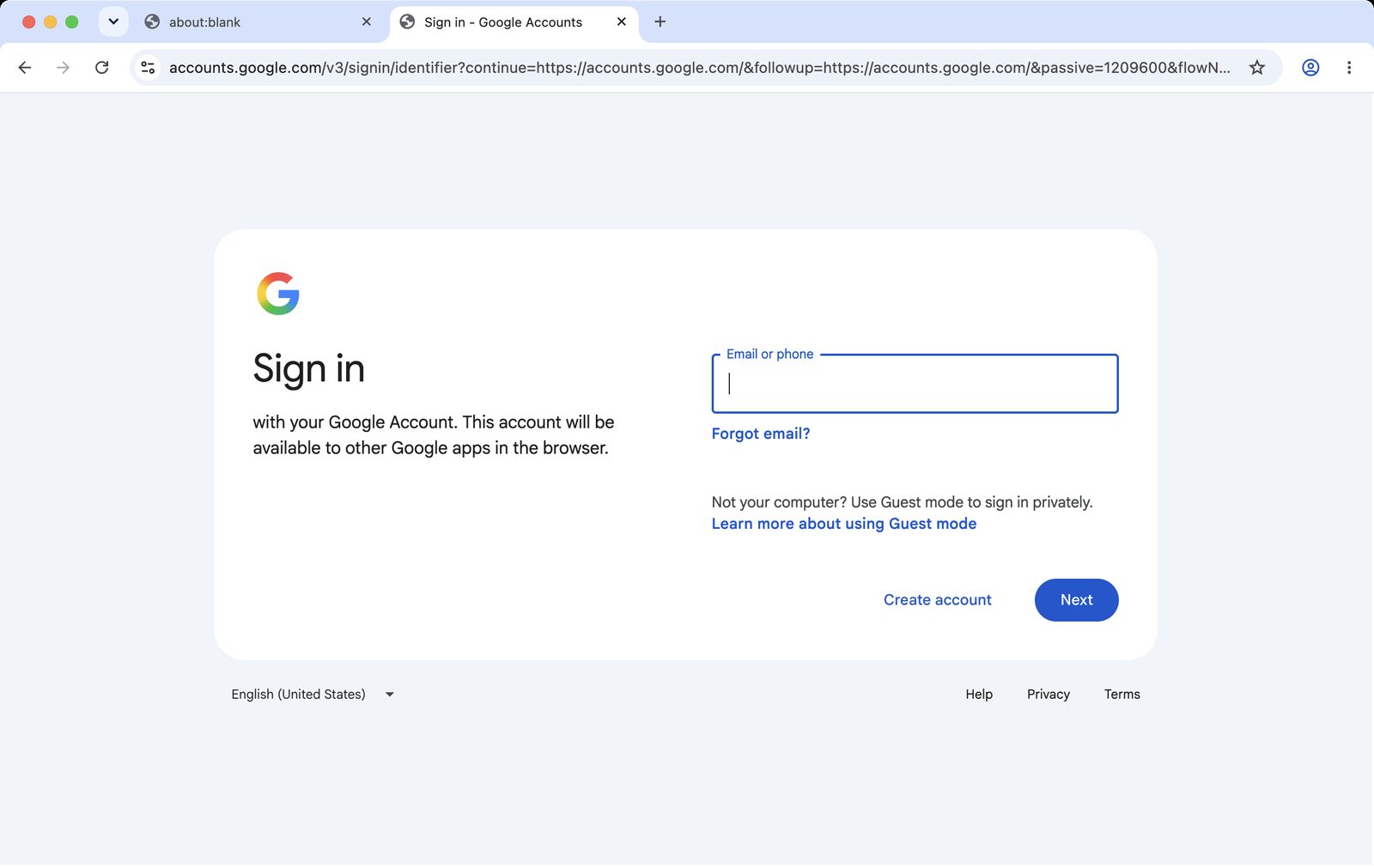
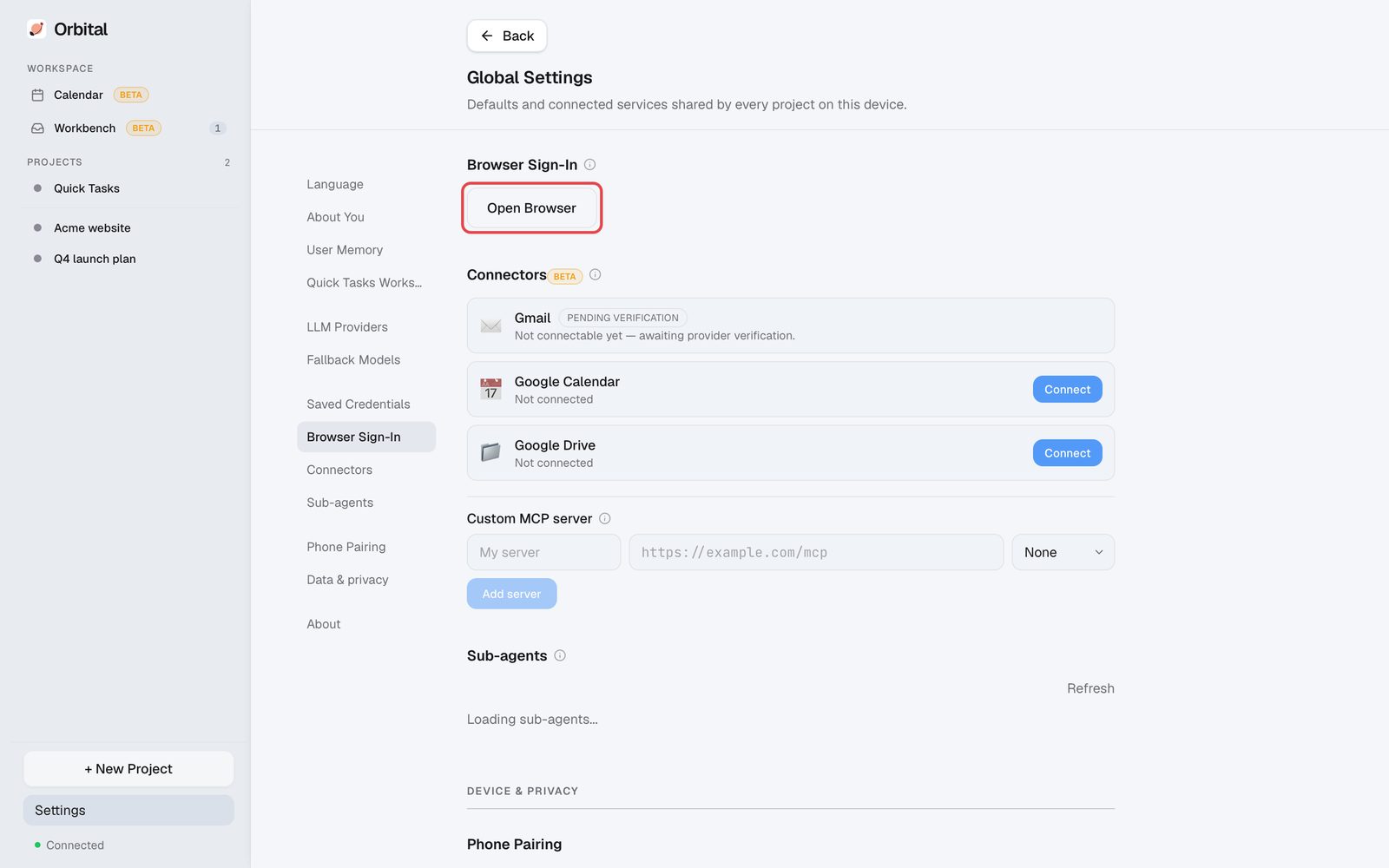
To add or remove accounts later, go to Settings → Browser Sign-In and open the browser again.
Import existing projects
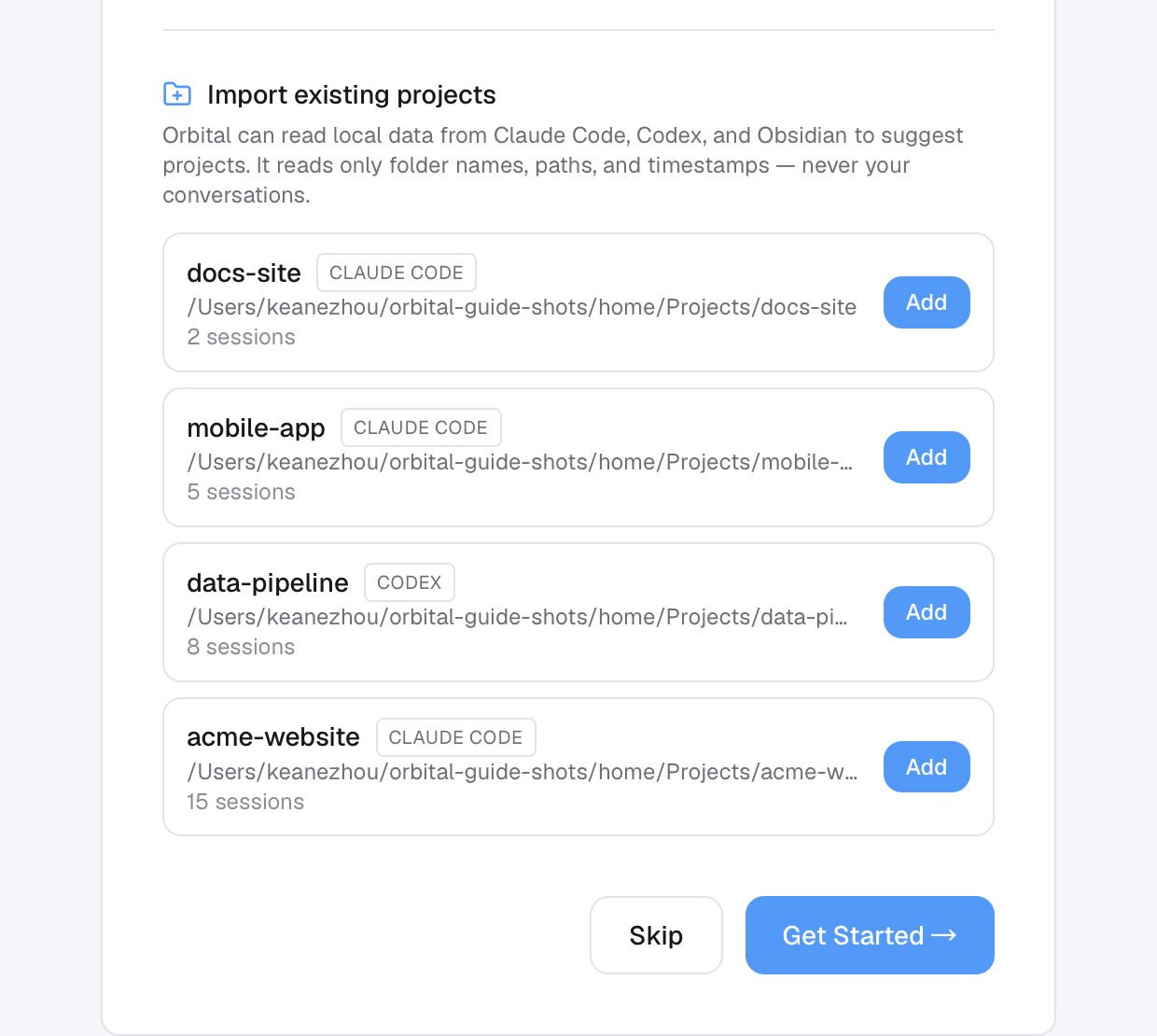
Click Scan for projects. Orbital lists the folders you already work on with Claude Code, Codex or Obsidian. It reads only folder names, paths and timestamps, never your conversations. Click Add on the ones you want.
3. Create a project
A project is a folder on your computer, and it's the core idea in Orbital. Orbital keeps long-term memory for each project, shaped by that project's goals, and memories never cross between projects. Your marketing project remembers markets and growth, not what you like to eat.
Start a new project
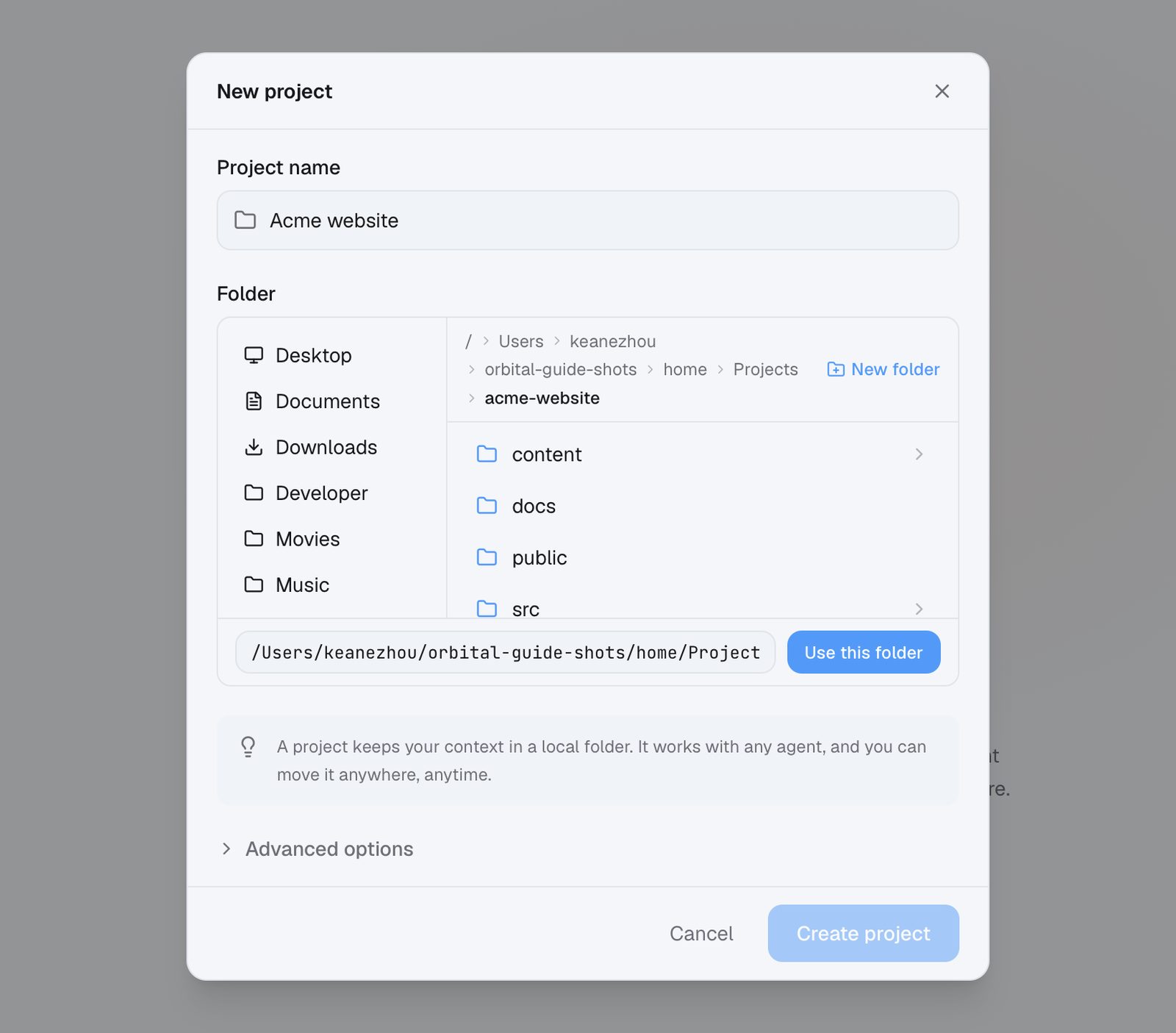
Click + New Project, enter a name, then choose an existing folder or create a new one.
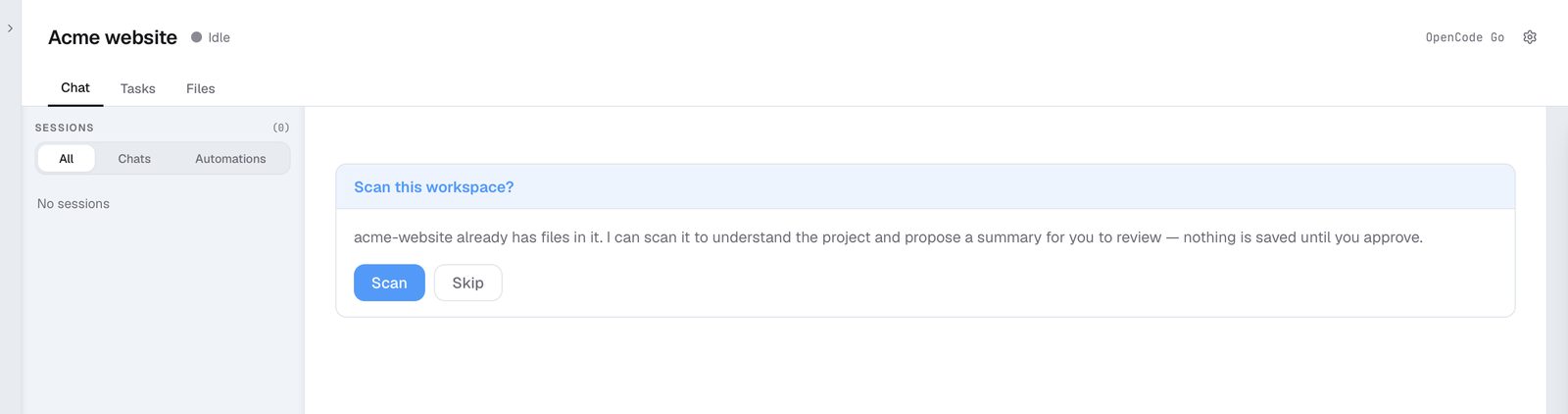
From an existing folder
Orbital offers to scan it: the directory listing plus the files that look important, which costs few tokens.
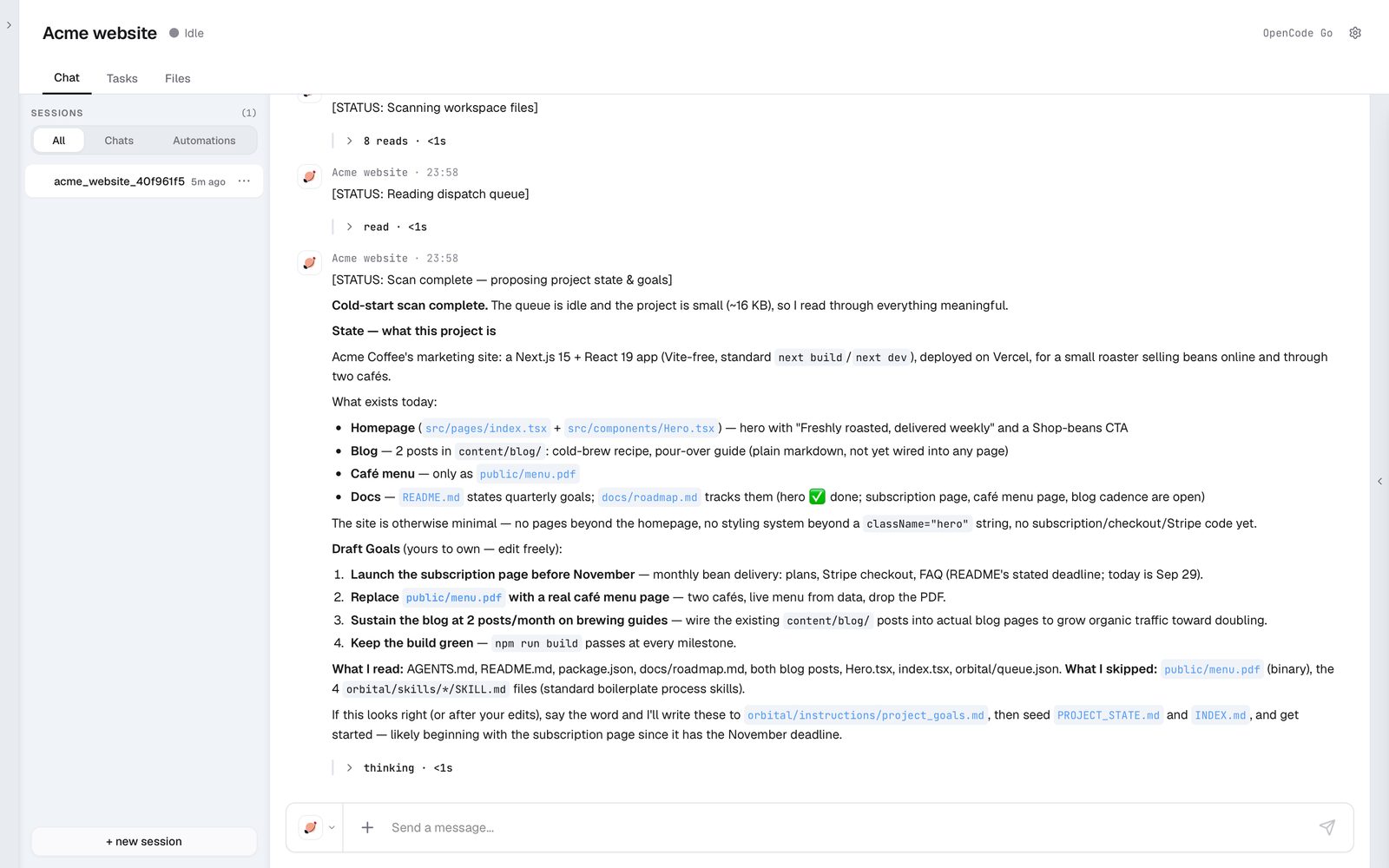
It then proposes what the project is and its goals. Nothing is saved until you approve.
From a new, empty folder
Orbital introduces itself and asks a few questions to set up the project.
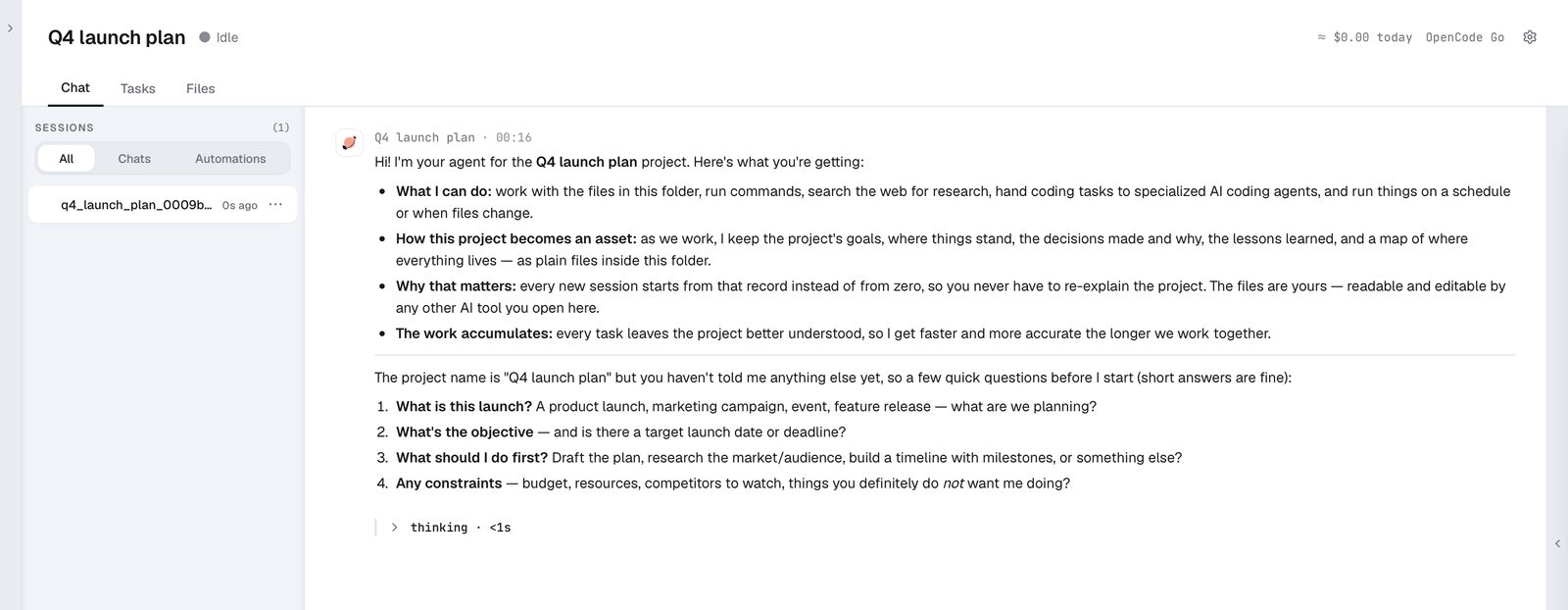
Quick Task
A built-in project for one-off jobs, with no setup. The Access selector at the top lets it draw on the context of any of your projects.
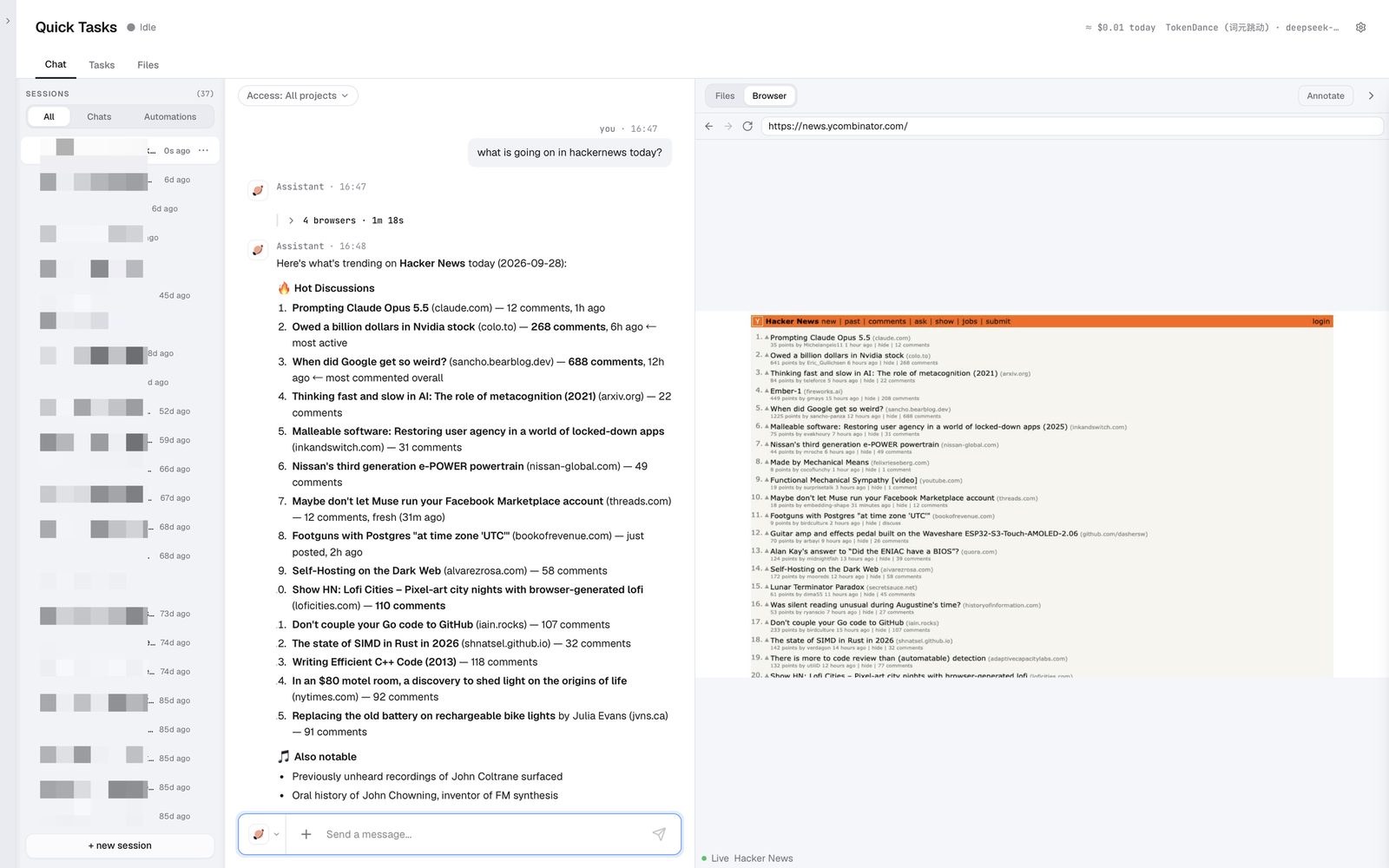
Everyday use
Switch agents mid-conversation
Orbital detects the sub-agents installed on your computer. Switch between them at any point in a conversation and the context comes along. The picker shows how much of each agent's usage window is left. Sub-agents run on your own subscriptions, such as your Claude Code or Codex plan.
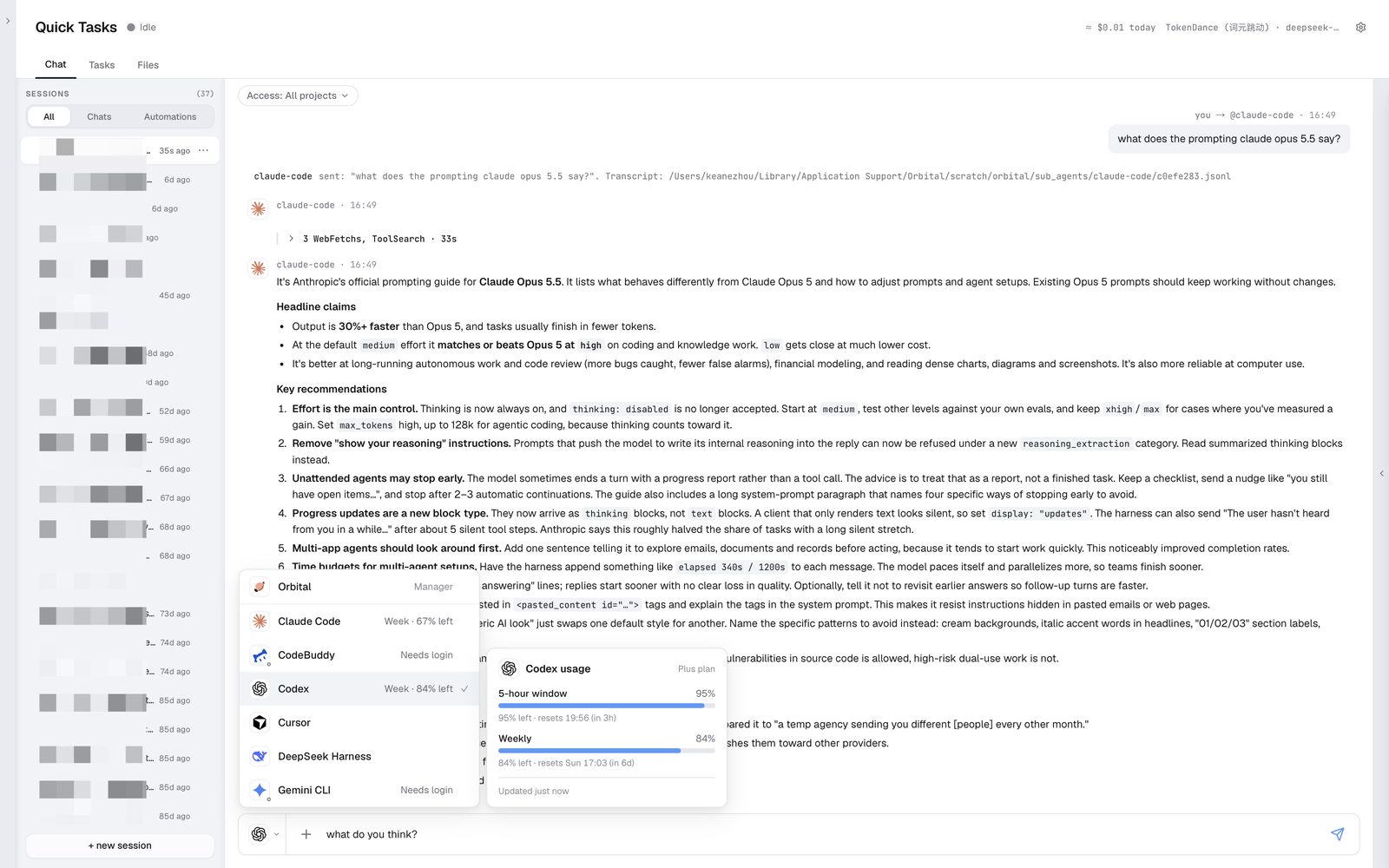
Have agents work together
Tell Orbital in plain words how to organize the agents, for example "send coding tasks to Claude Code and have Codex review them." State it once as a standing rule and Orbital remembers the workflow.
Sub-agent settings and memory
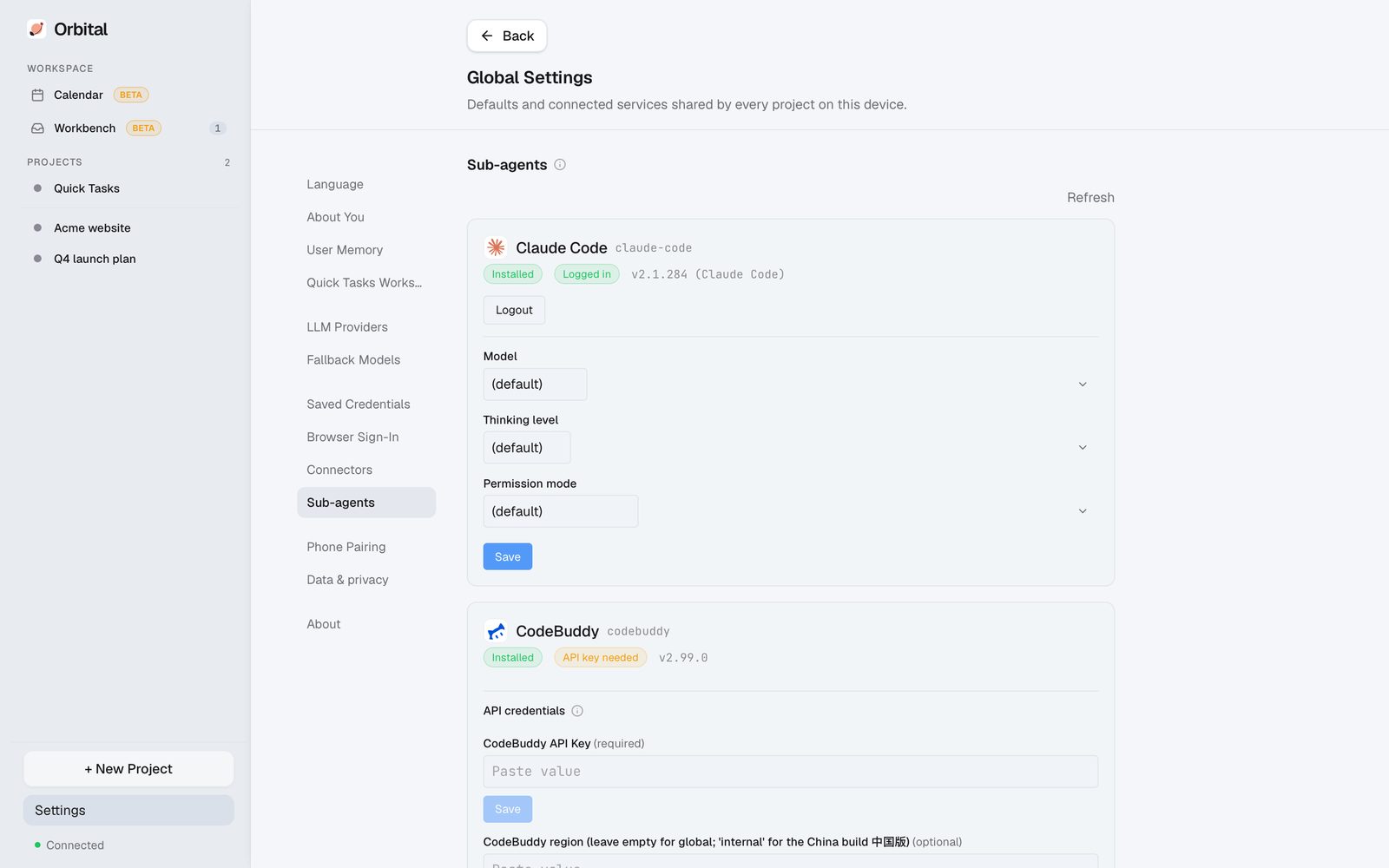
For all projects
Settings → Sub-agents. Choose each agent's model, thinking level and other options.
For one project
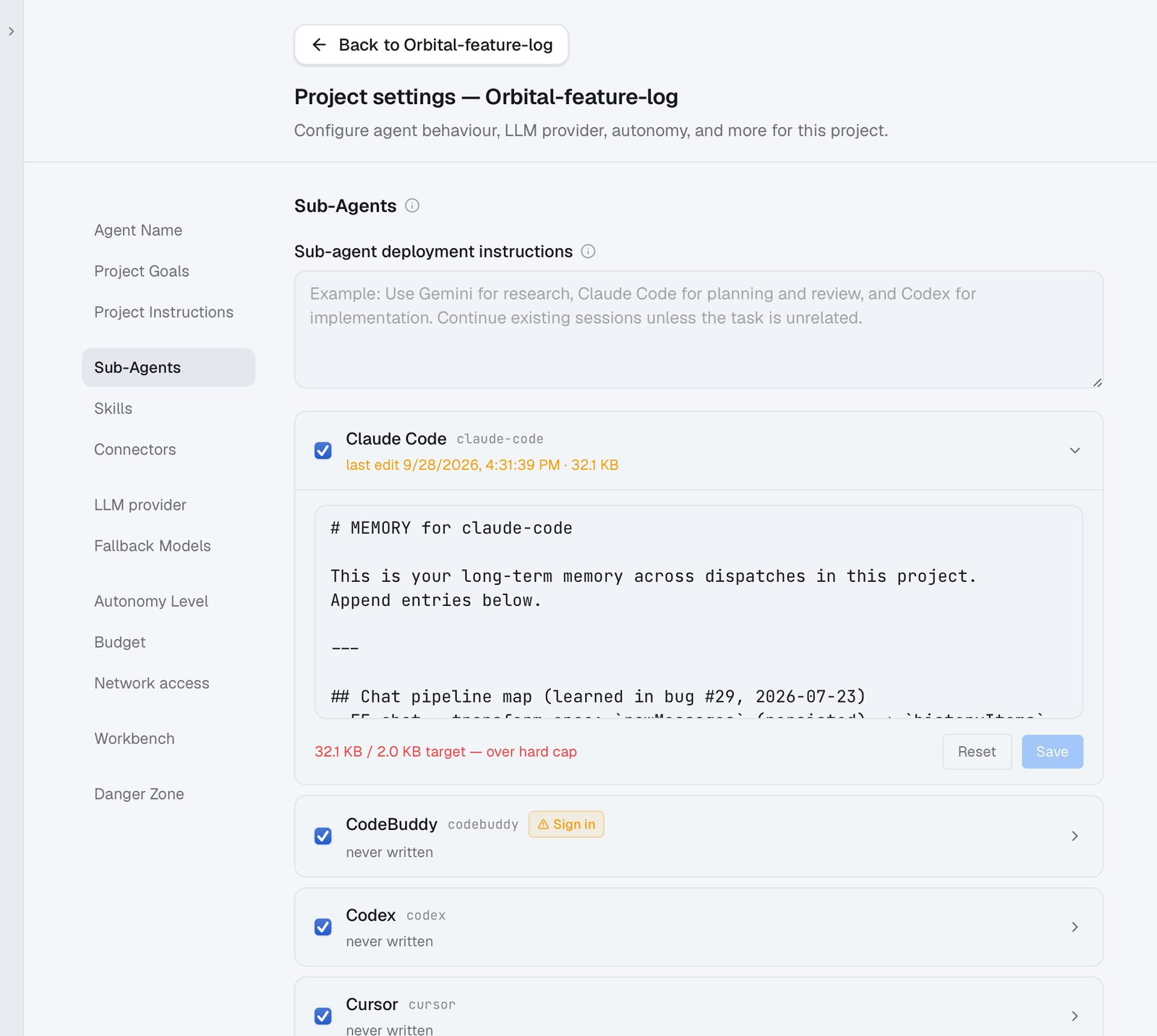
Project settings → Sub-Agents. Write dispatch instructions, view and edit what each sub-agent remembers about this project, or untick an agent to disable it here.
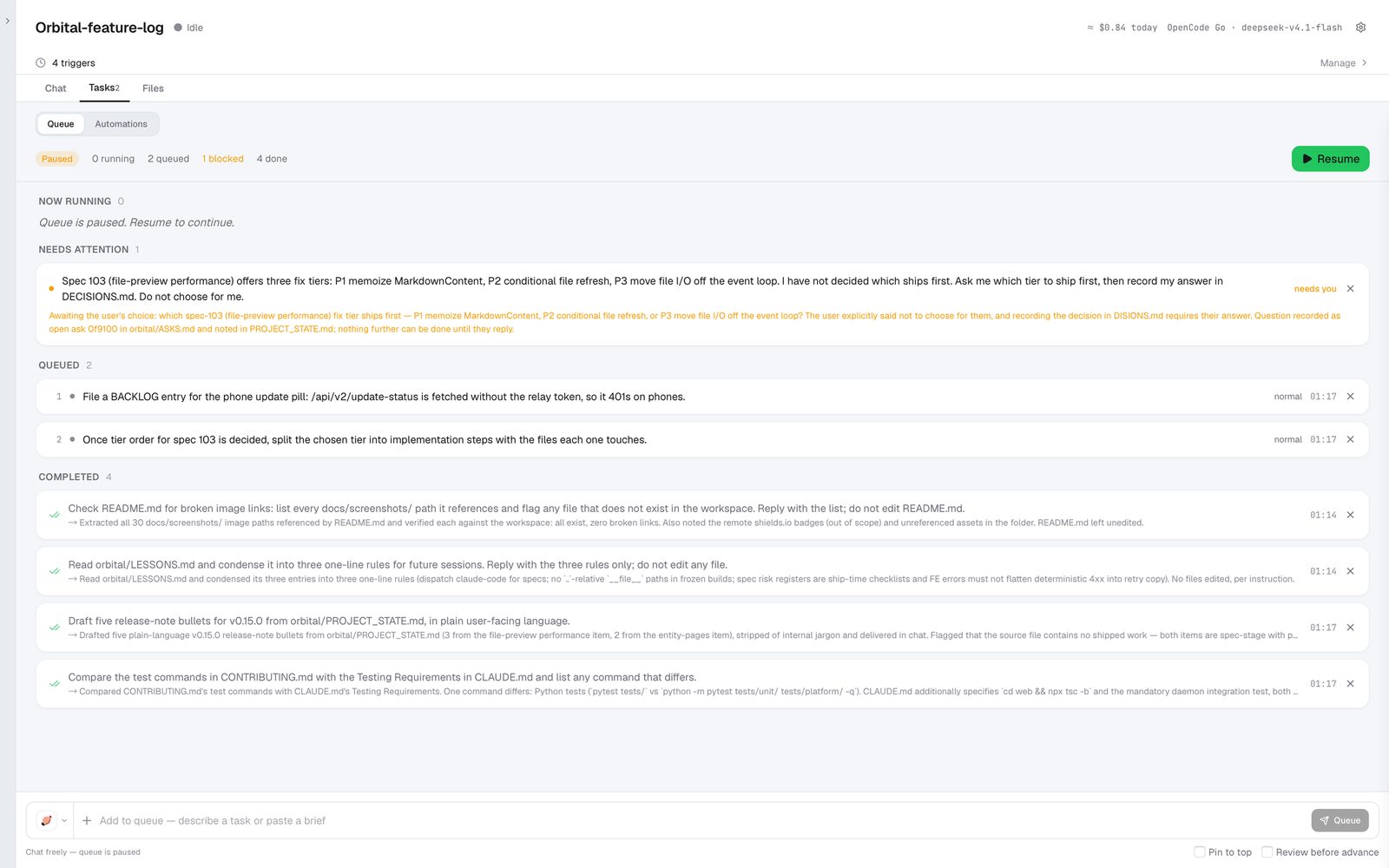
Task queue
Line up several tasks under Tasks → Queue. Whenever the project is idle, Orbital runs them in order, each in a new session, and each one can go to a different agent.
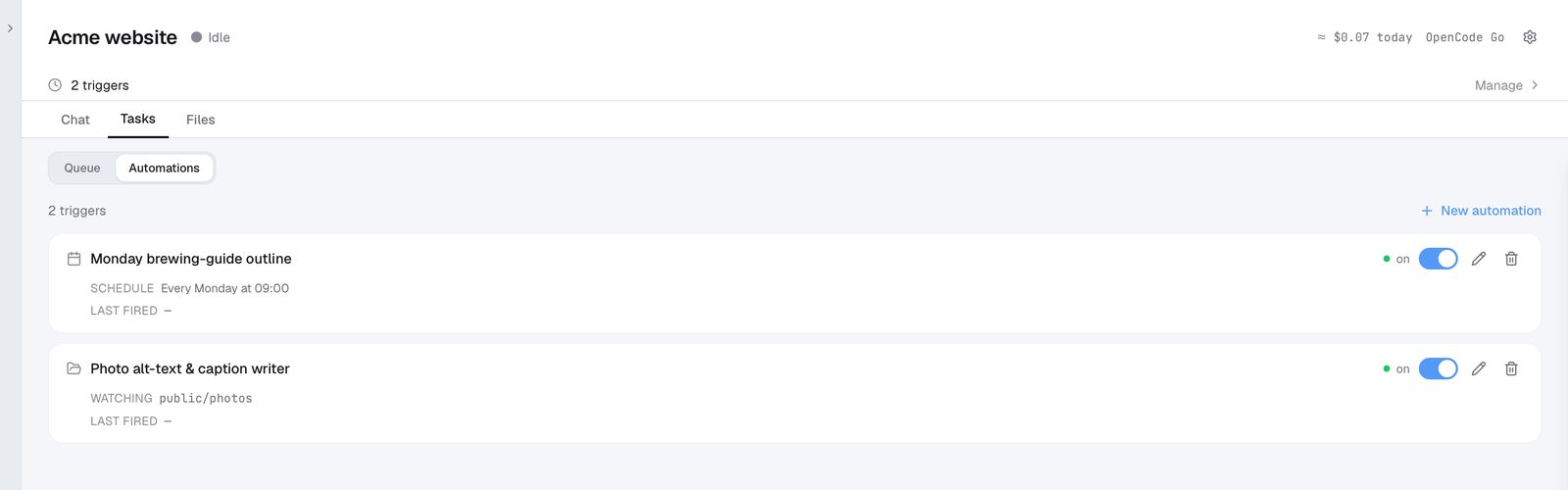
Automations
There are two kinds, both listed under Tasks → Automations: scheduled tasks and file triggers.
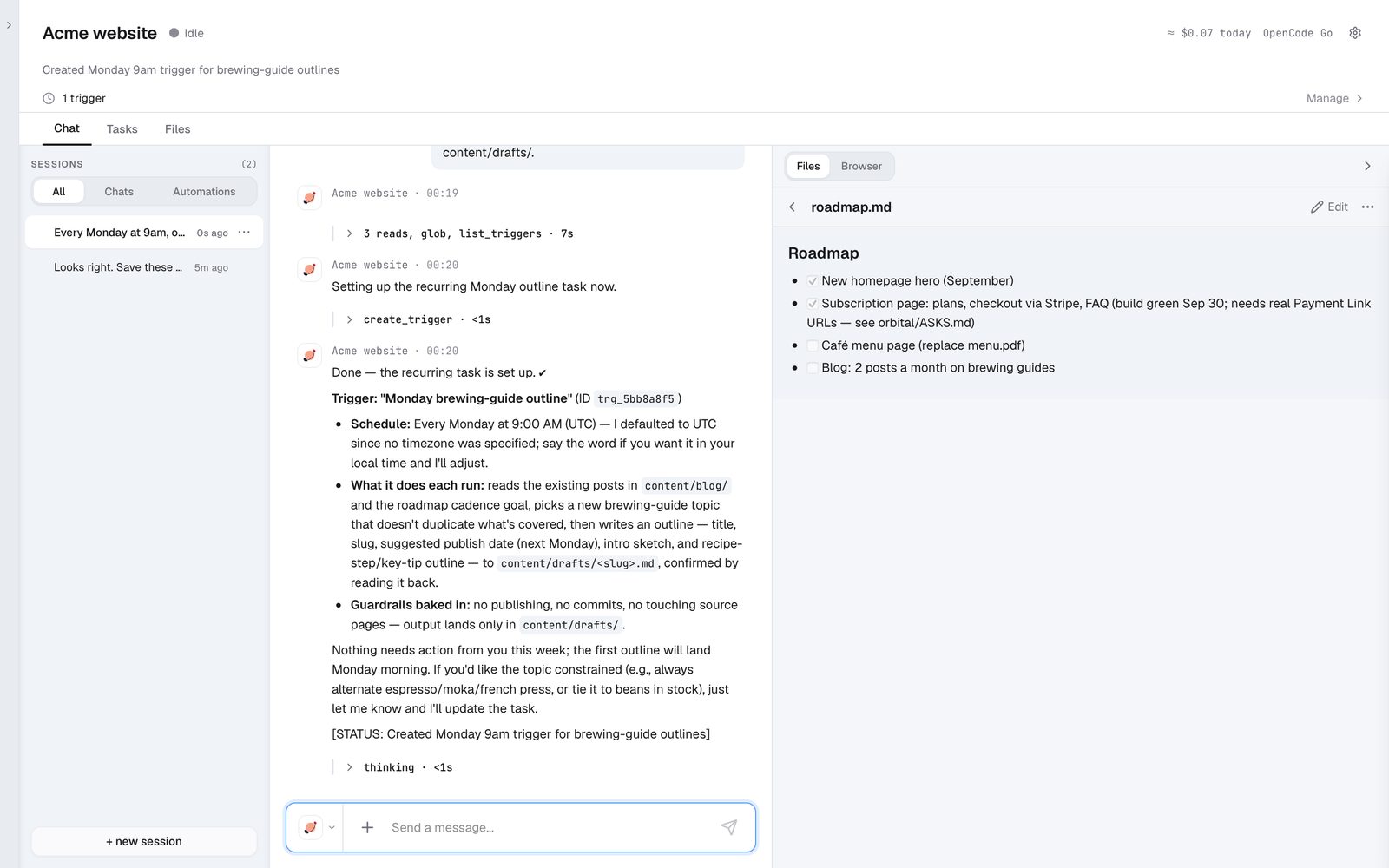
Scheduled tasks
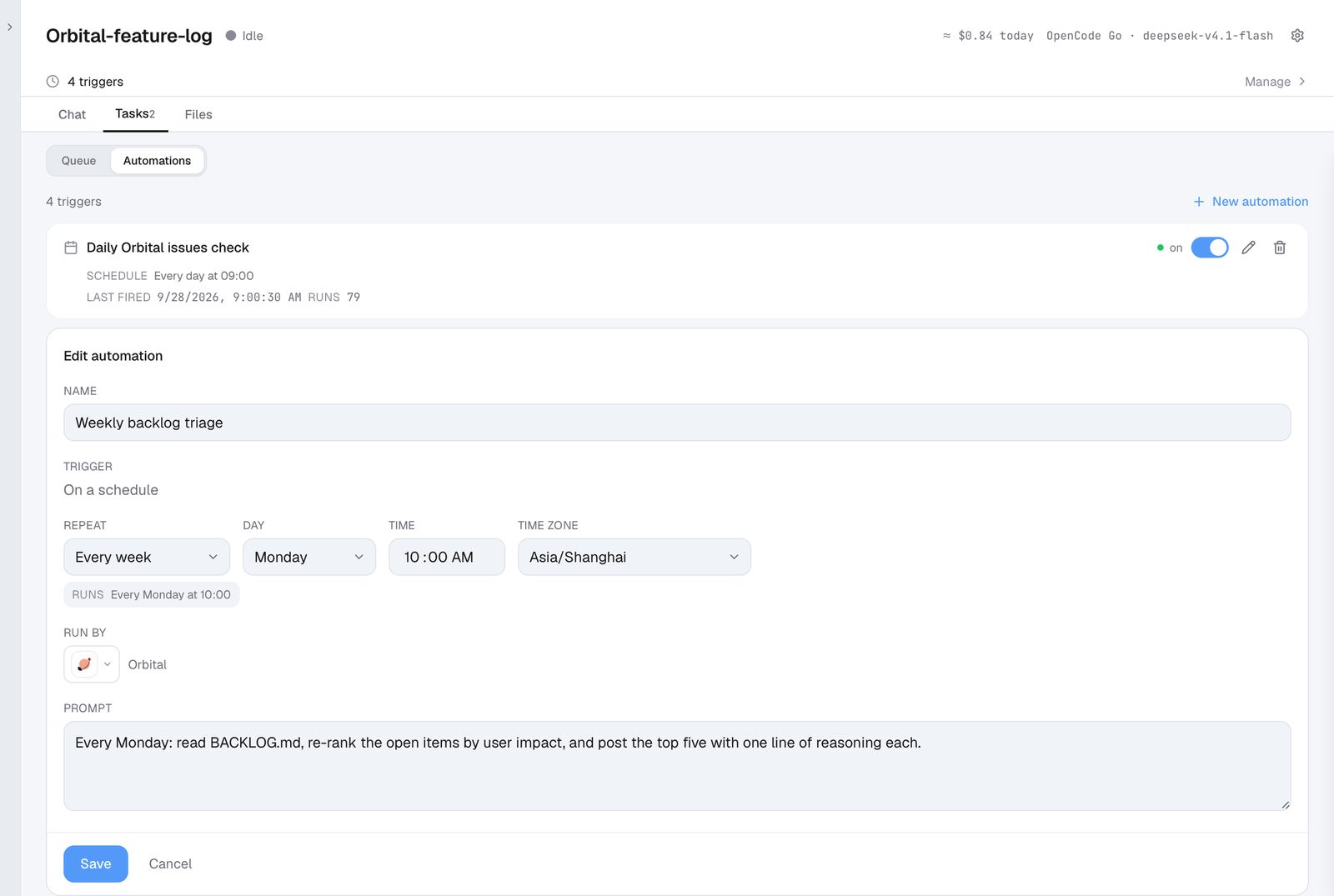
Ask in the chat to create or change a schedule.
You can also edit one yourself.
File triggers
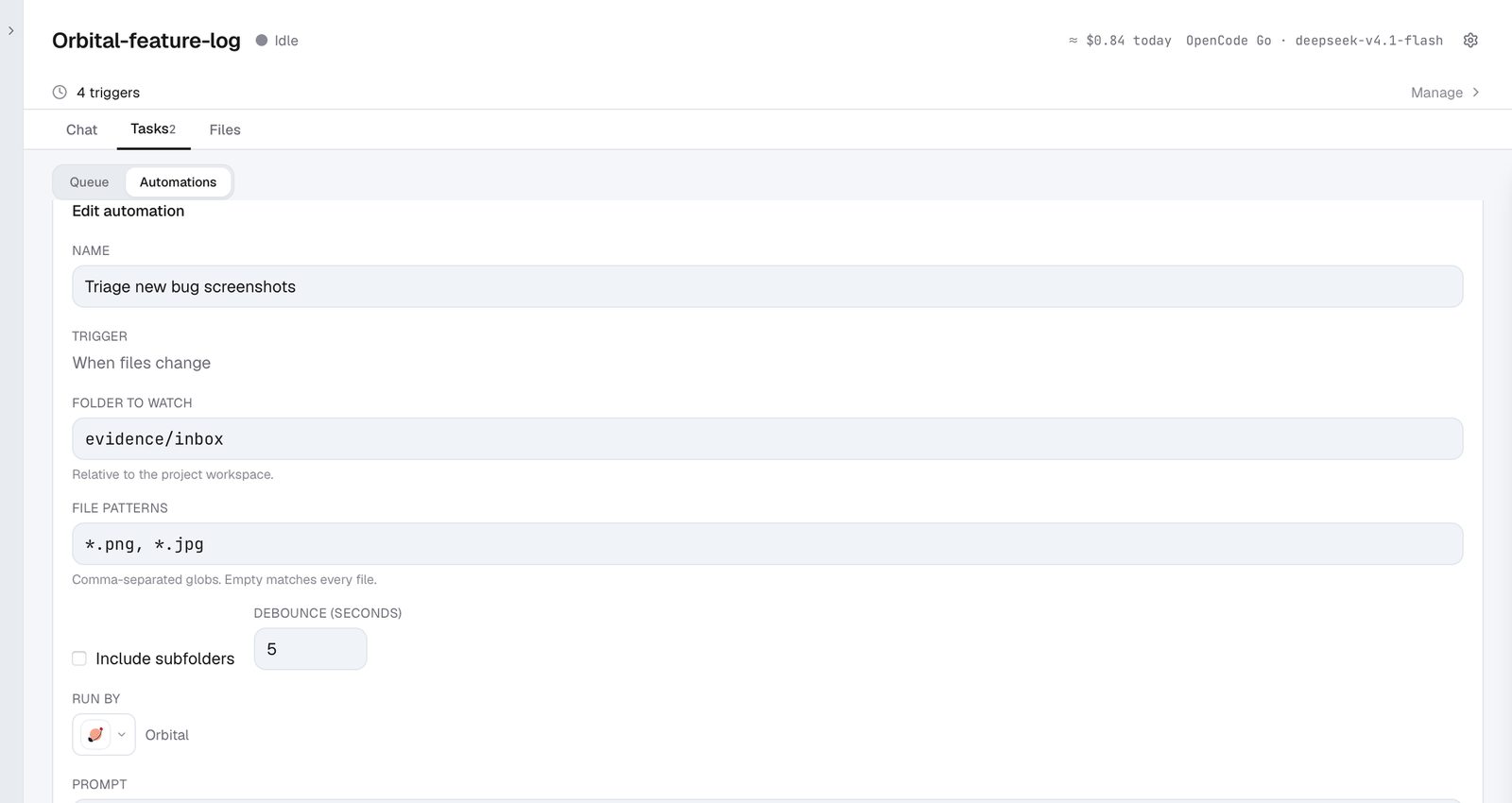
Orbital watches a folder in the project and starts a workflow when new files arrive. Describe the workflow you want in the chat.
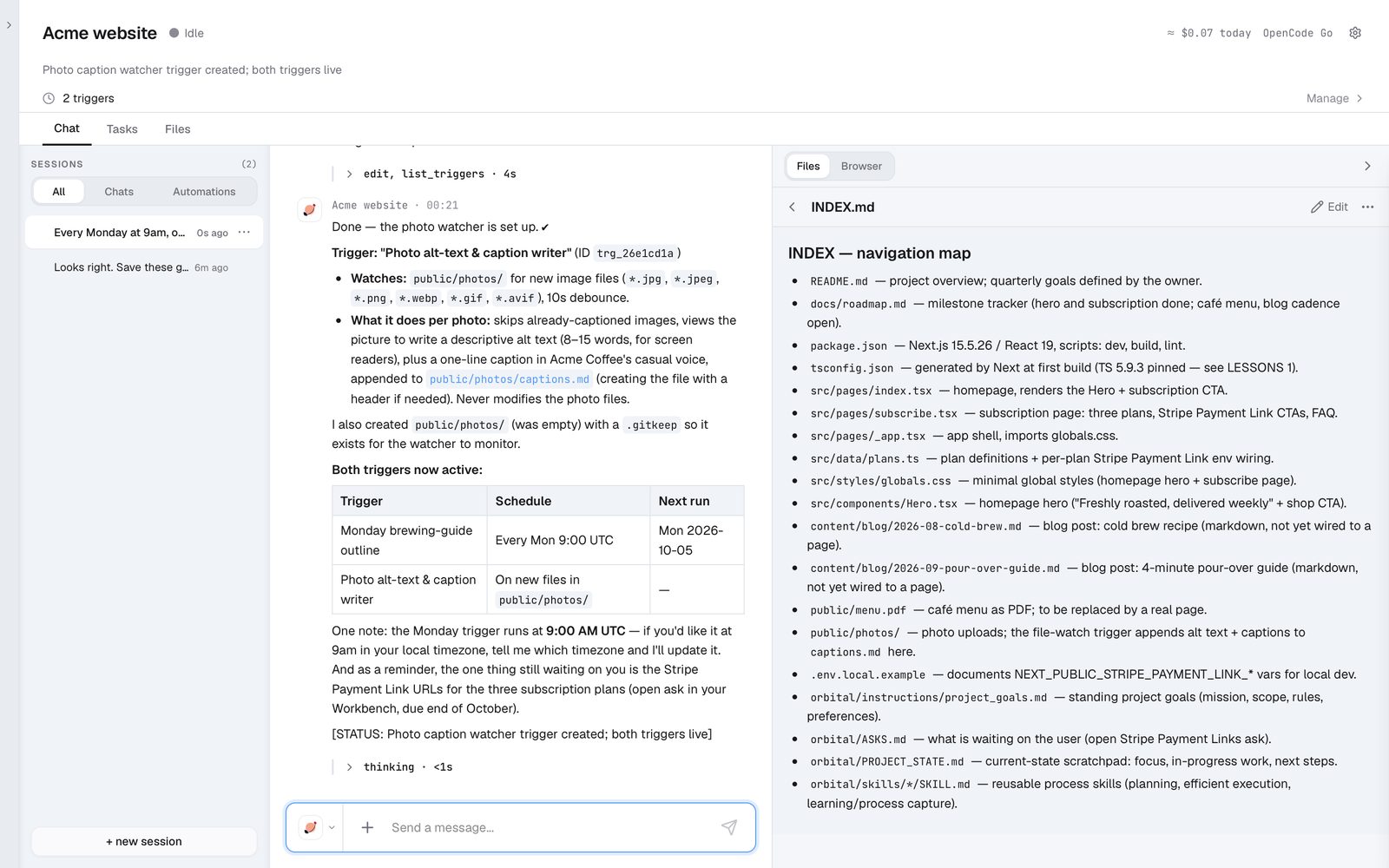
Every new photo in public/photos/ gets alt text and a caption.
Global settings
Models
Settings → LLM Providers. Add several models and choose which one Orbital uses by default.
Browser sign-in
Settings → Browser Sign-In. Open the browser, sign in to any account you want agents to use, then close it.
Project settings
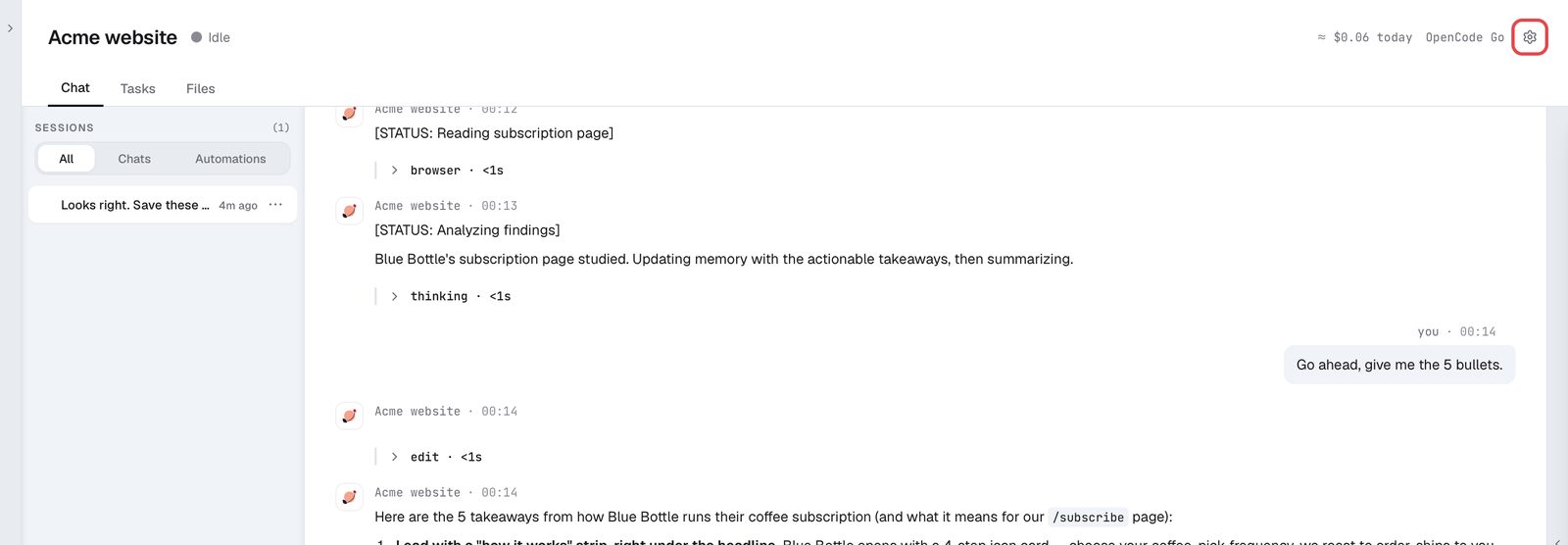
Open them with the gear at the top right of a project. They shape how Orbital behaves in that project.
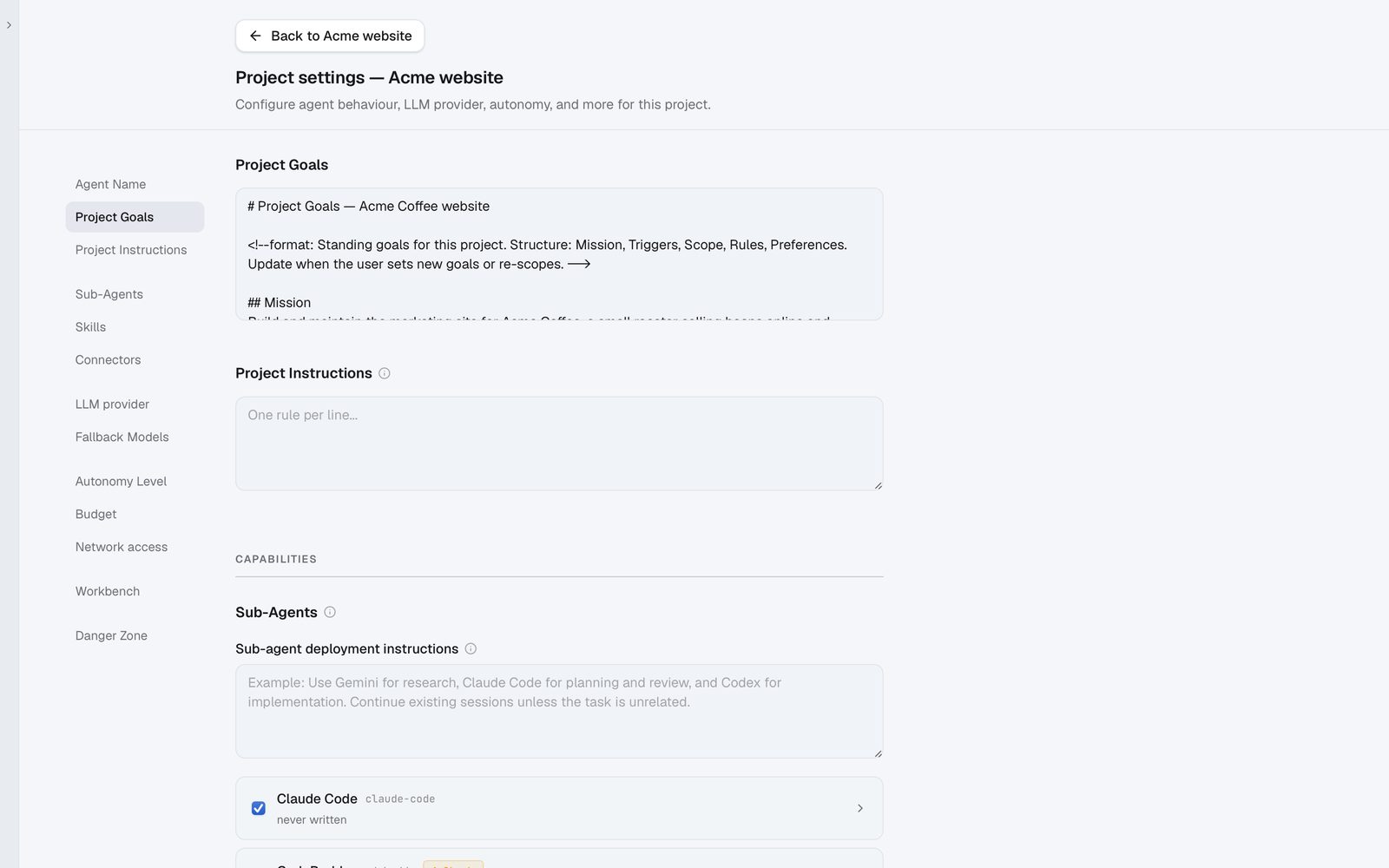
Goals and rules
Goals are set when the project is created; add your own rules under Project Instructions. They live in the project folder as orbital/instructions/project_goals.md and user_directives.md, and both go straight into Orbital's system prompt.
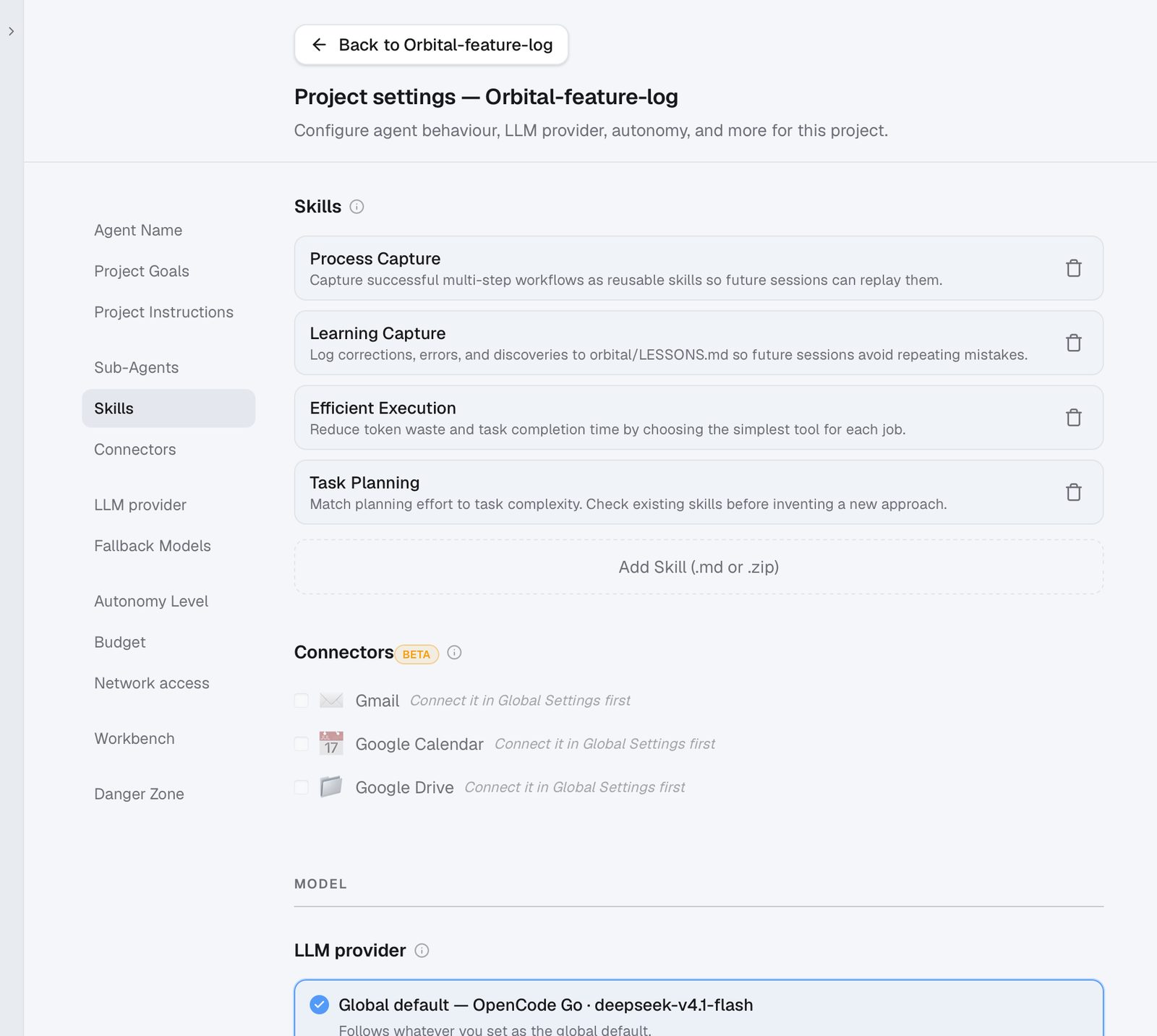
Skills
Four are built in:
- Process Capture saves a repeatable process as a skill.
- Learning Capture saves lessons learned as a skill.
- Efficient Execution keeps tasks quick.
- Task Planning plans multi-step work.
You can upload your own skills, and the ones Process Capture saves appear here too. They're stored in the project's orbital/skills/ folder.
Model
Each project can use its own model. By default it follows the global default.
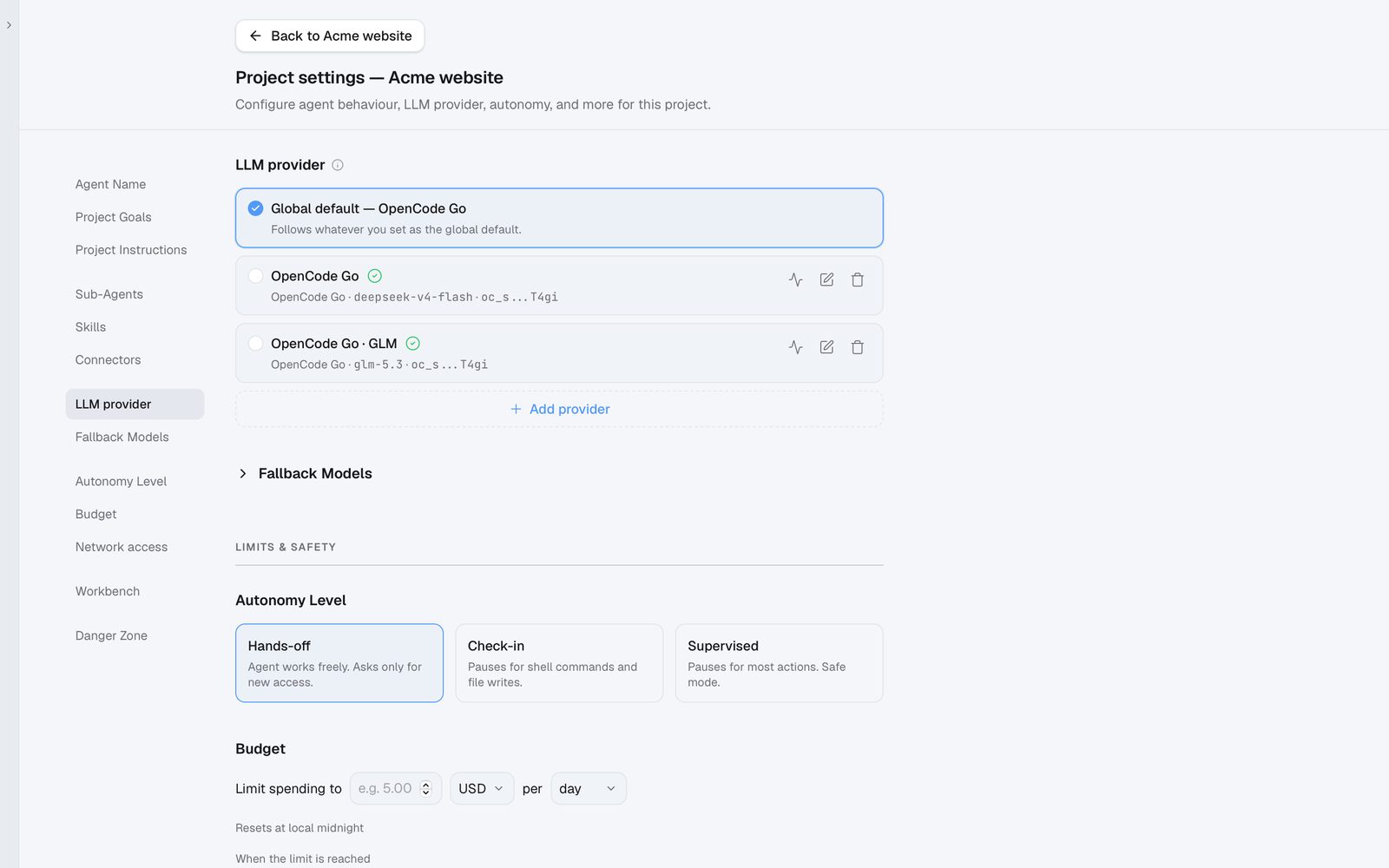
Autonomy level
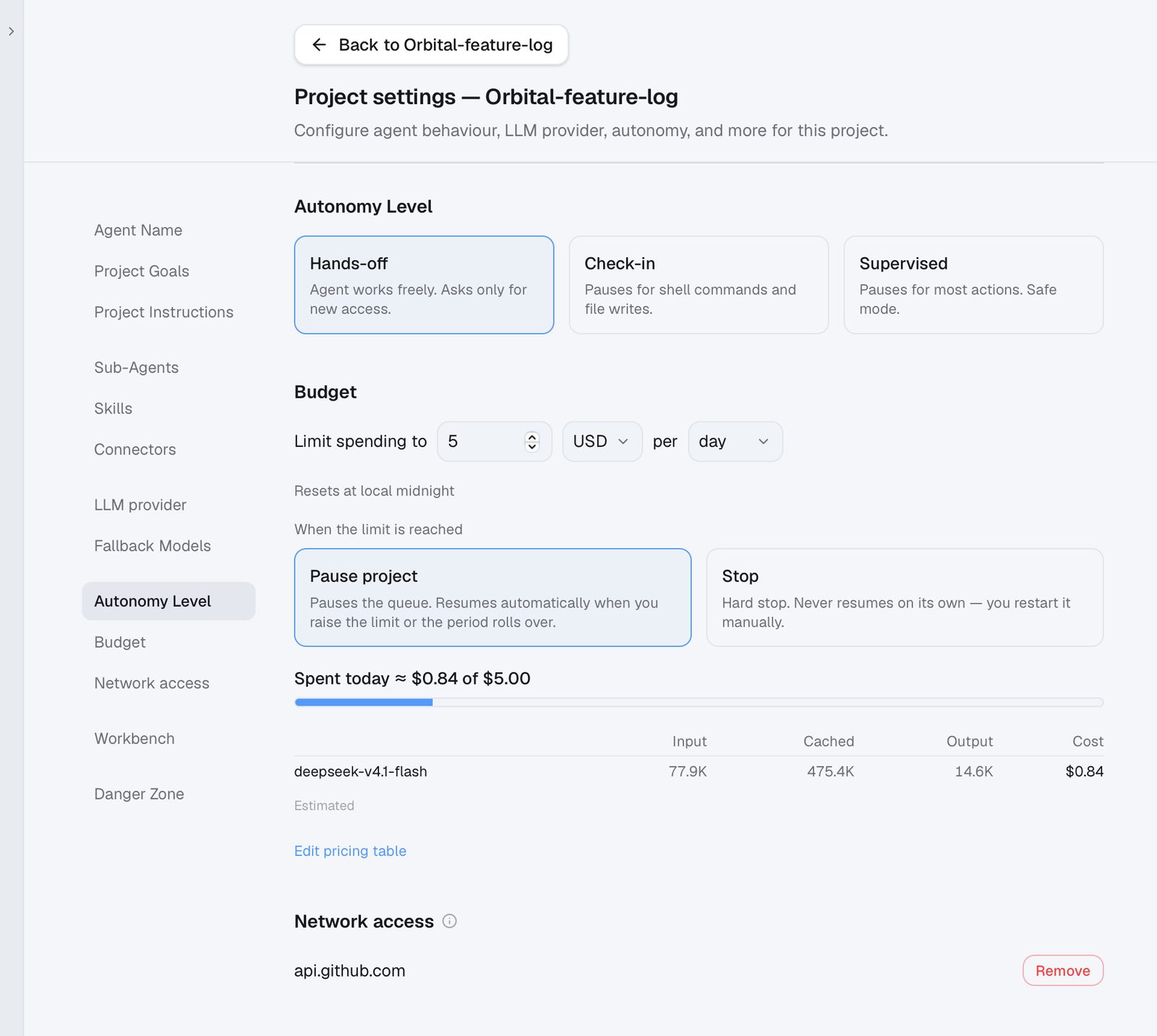
Choose how much Orbital may do without asking. The default is Hands-off.
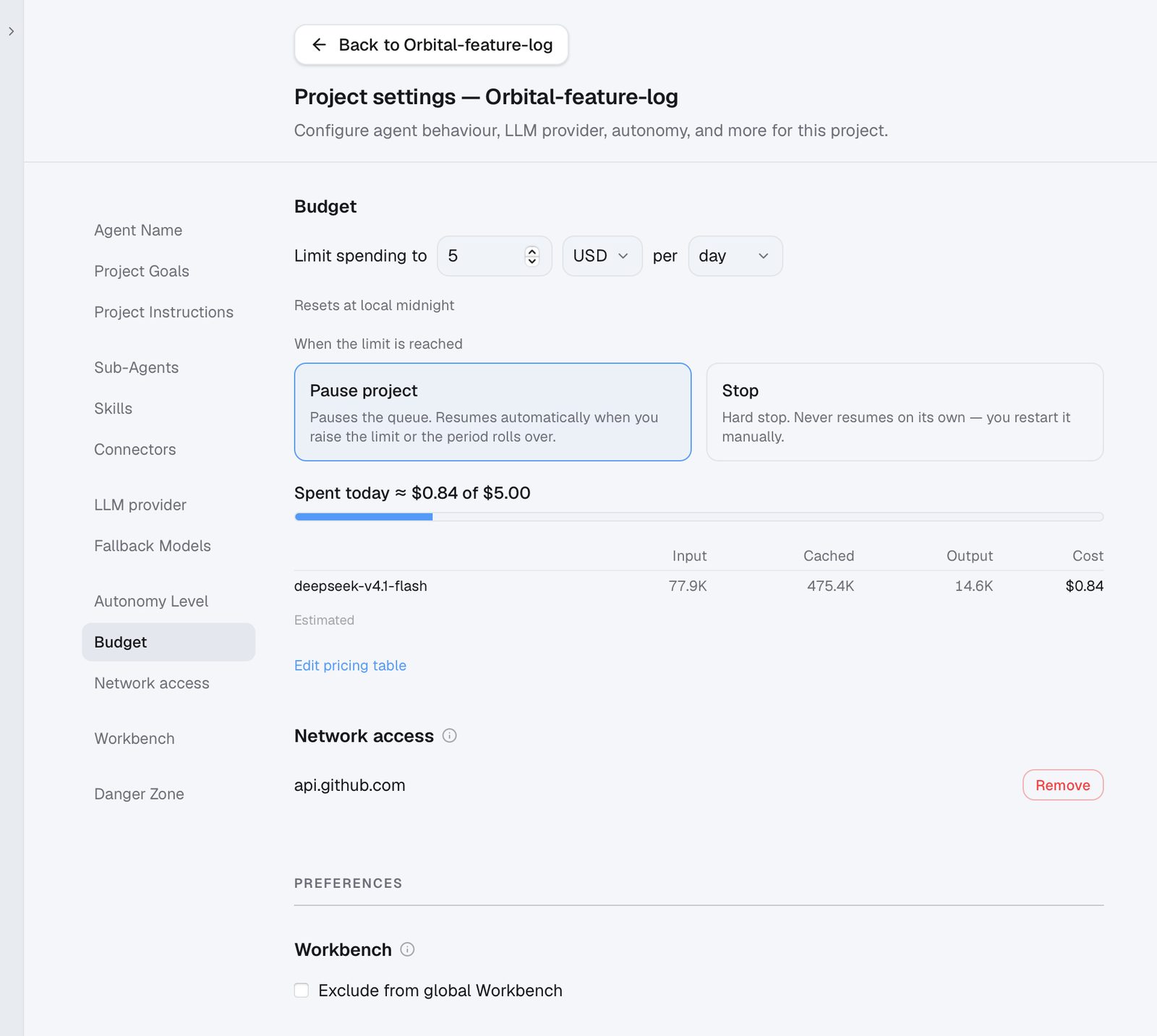
Budget
Set a spending cap for the project. When it's reached, Orbital either pauses (and resumes when the limit rises or the period rolls over) or stops. This page also shows the tokens used and their cost. For exact prices, edit the pricing table.
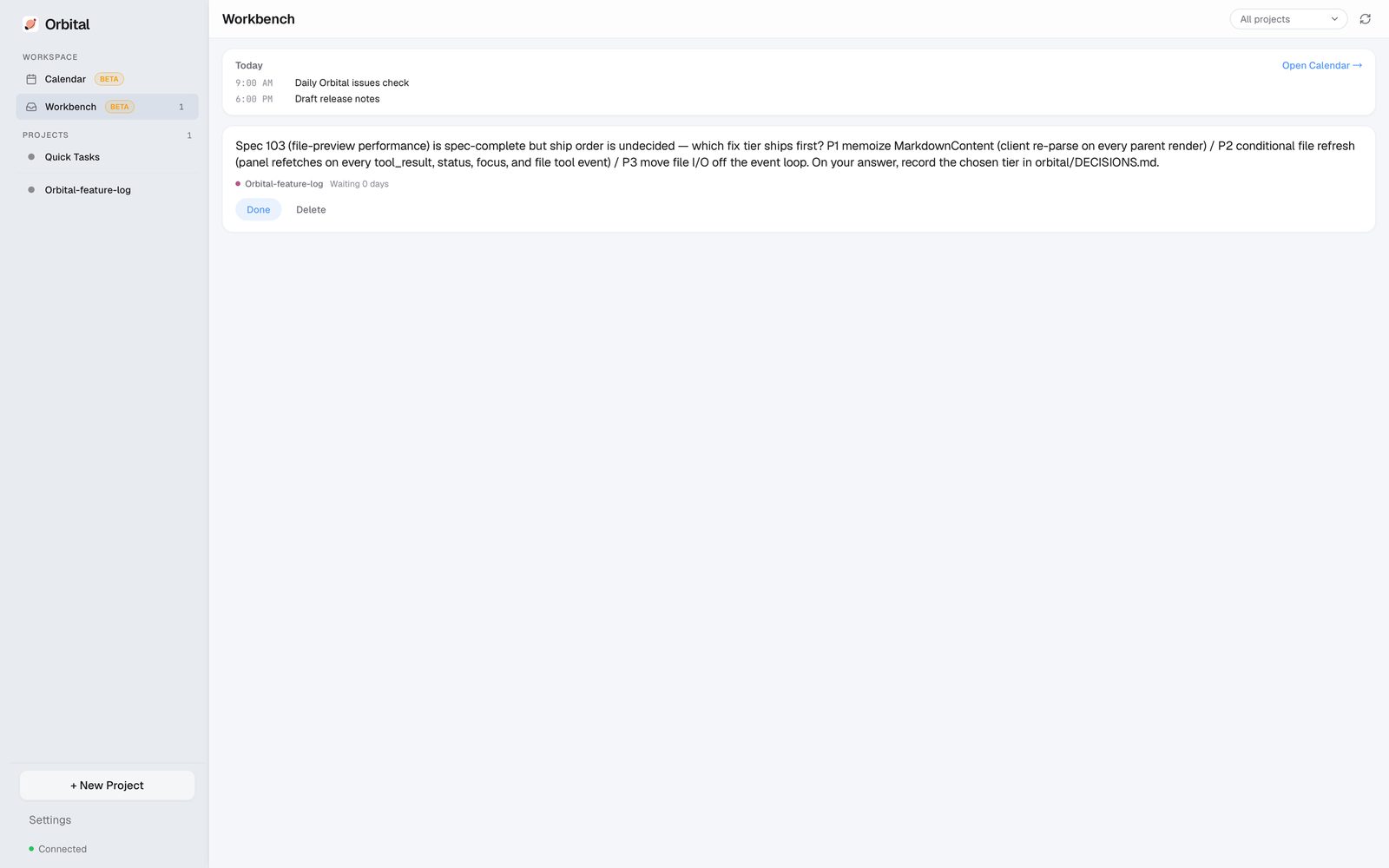
Workbench (beta)
Loose ends from your sessions collect here. Mark each one done or delete it to let Orbital know where it stands.
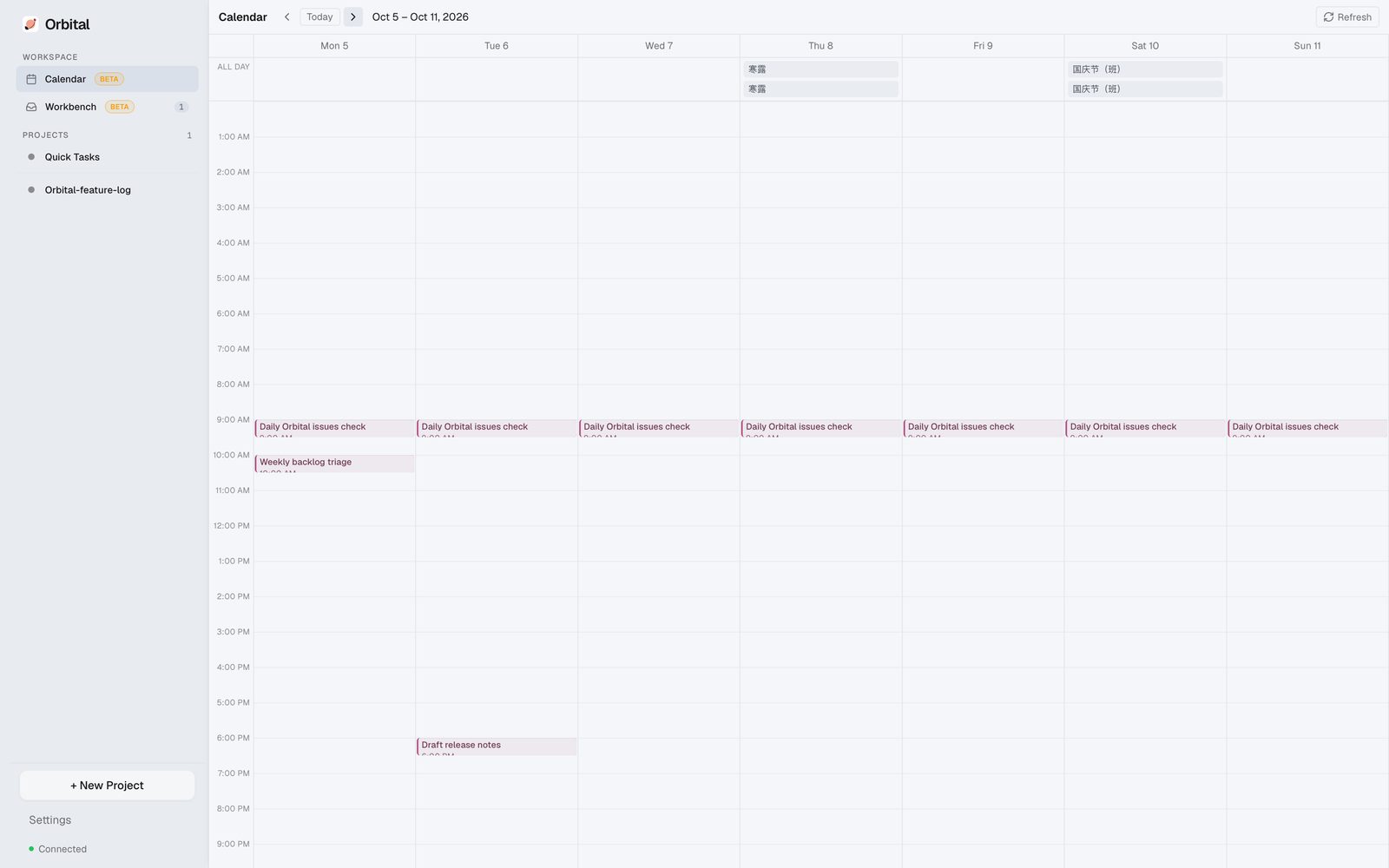
Calendar (beta)
Shows the scheduled tasks of all your projects. Connecting other calendars is coming.
Links
GitHub: https://github.com/zqiren/Orbital
Website: https://orbital.top/en/
X: @keane42443
Bilibili: 10keane